
Wallets
Access wallet details
From the wallet details page, it is possible to:
- Check wallet balances and holdings
- Generate additional wallet addresses, if applicable
- Initiate withdrawals
- Check the deposit address and pooled wallet addresses, if applicable
- Edit the wallet name
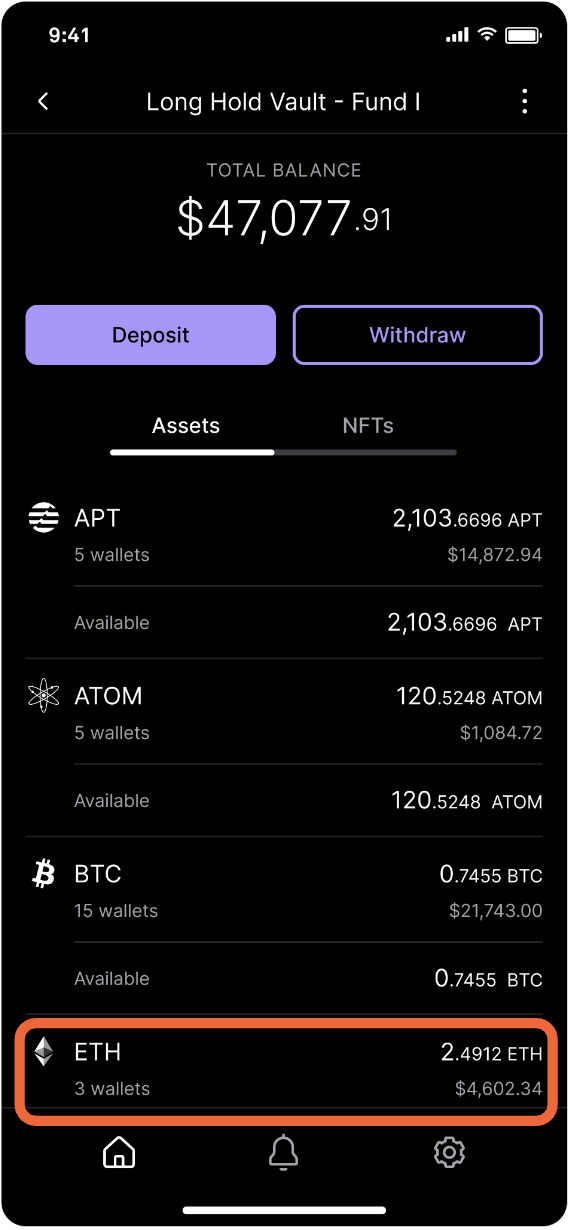
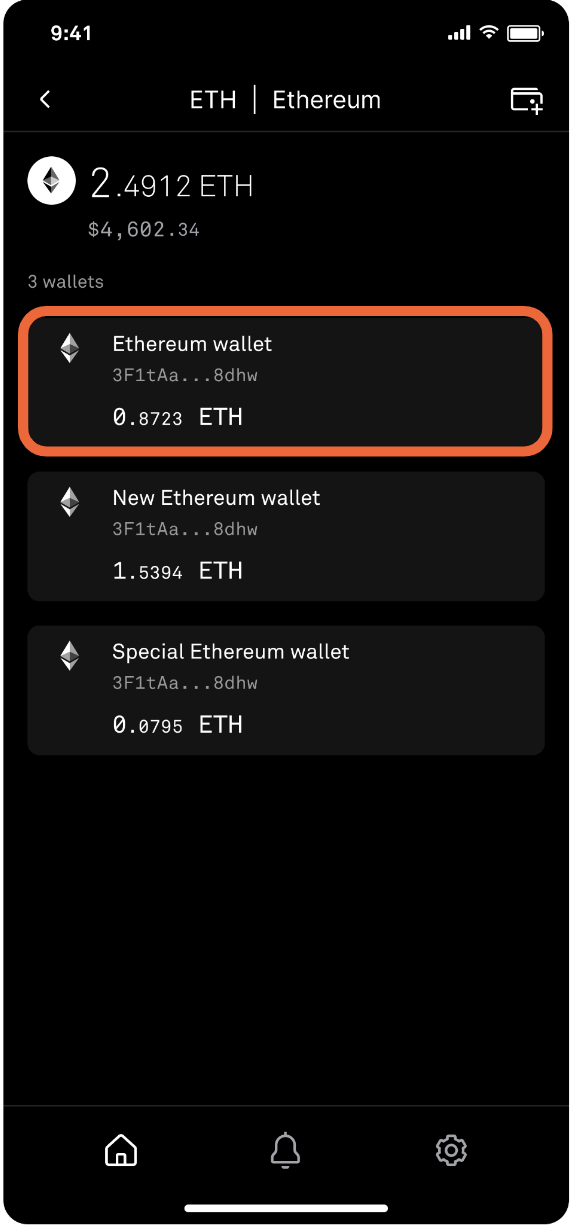
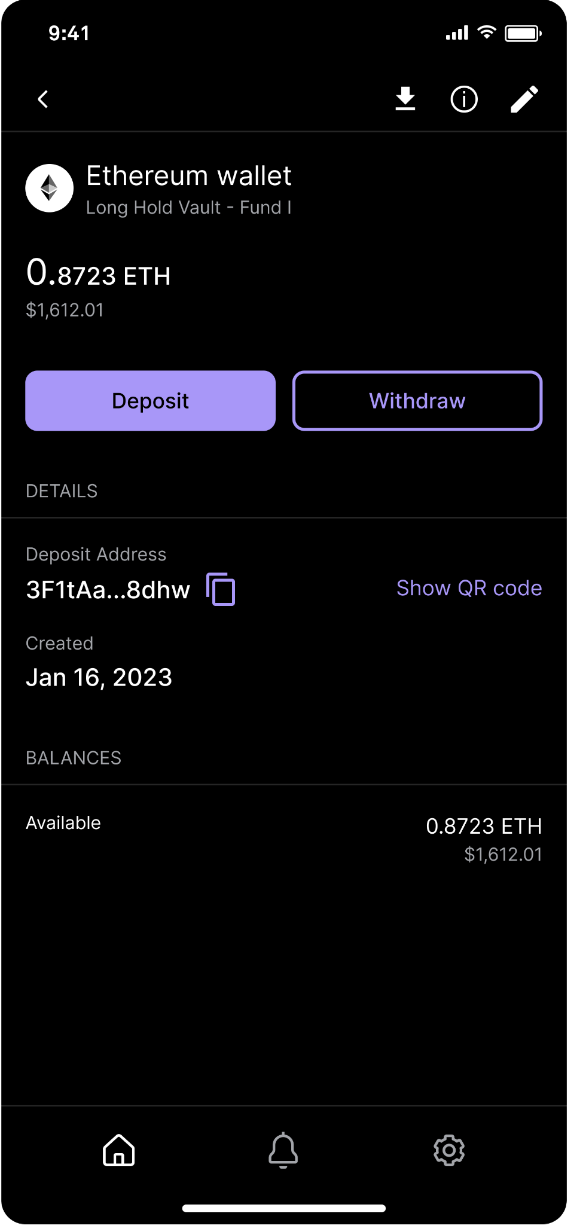
On the vault page, select the asset to view the associated wallets in the vault. Tap the wallet to see its details.
Under Details you can copy or share your deposit address.
Add a new wallet
To add a new wallet, begin by navigating to the vault page and selecting an asset. Once you’ve selected an asset, tap the wallet icon in the top right corner and then tap I understand, continue.
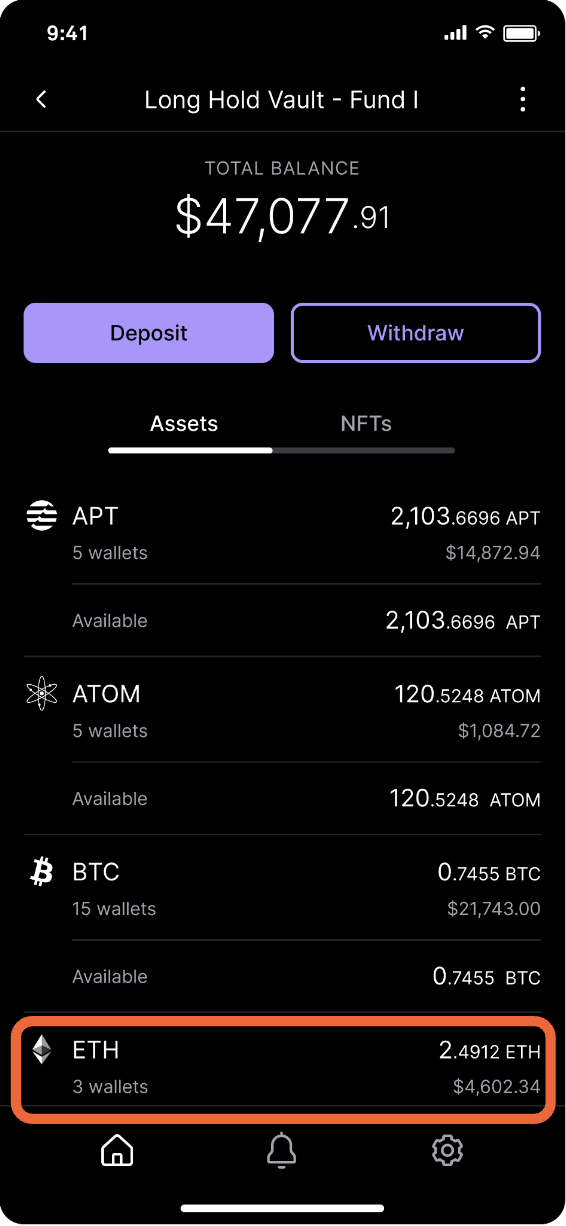
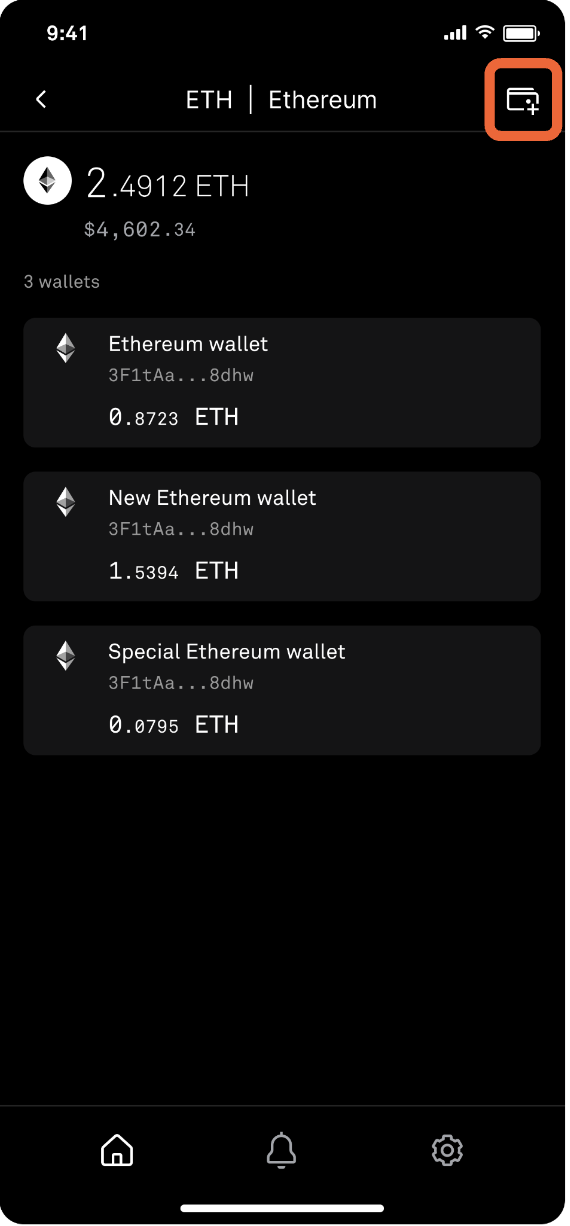
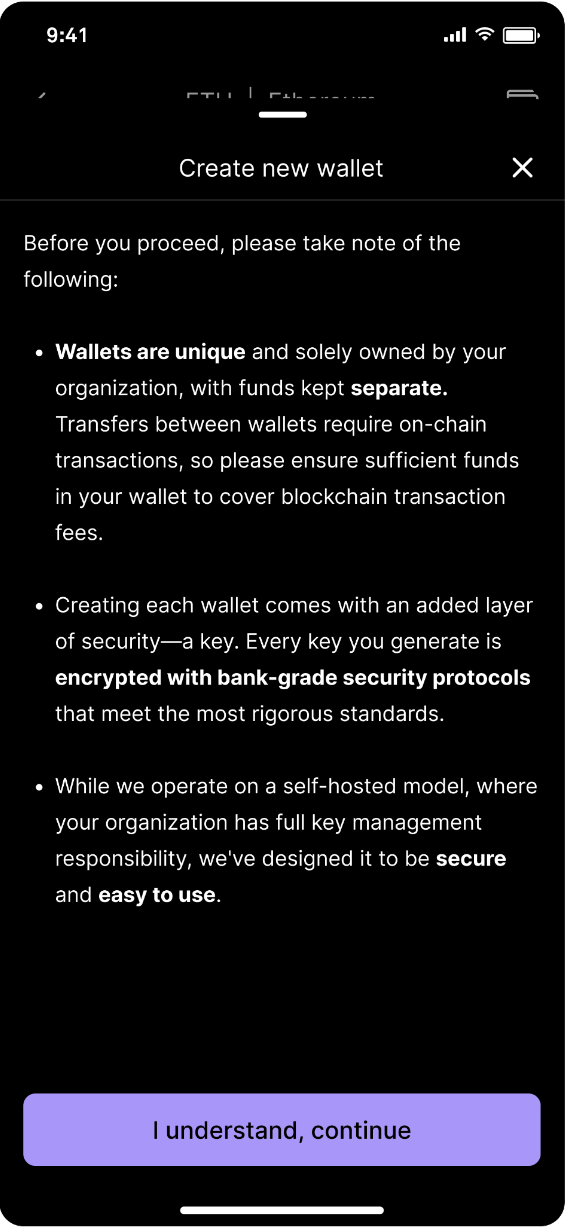
On the vault page, select the asset to view the associated wallets in the vault. Tap the wallet icon with the + button. Tap I understand, continue.
This process has created a new wallet and prompt for you to download the encrypted wallet key. If preferred, new wallet keys can be exported to your team via email by updating your key download preferences from the web dashboard.
If you have previously elected to have wallet keys provided via email, you will not be prompted to download the key at this step in the process.
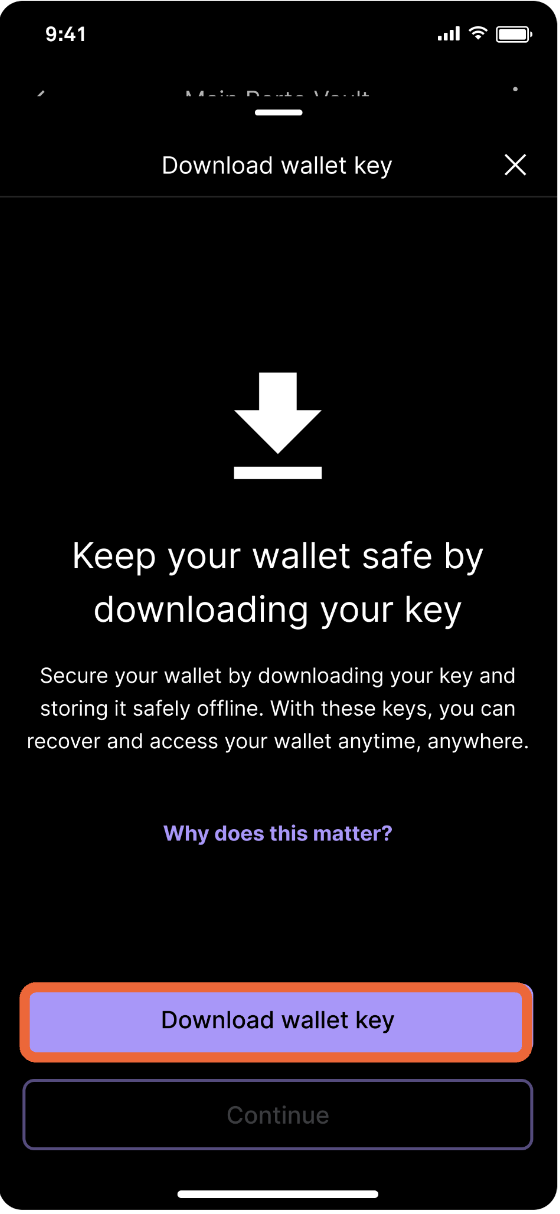
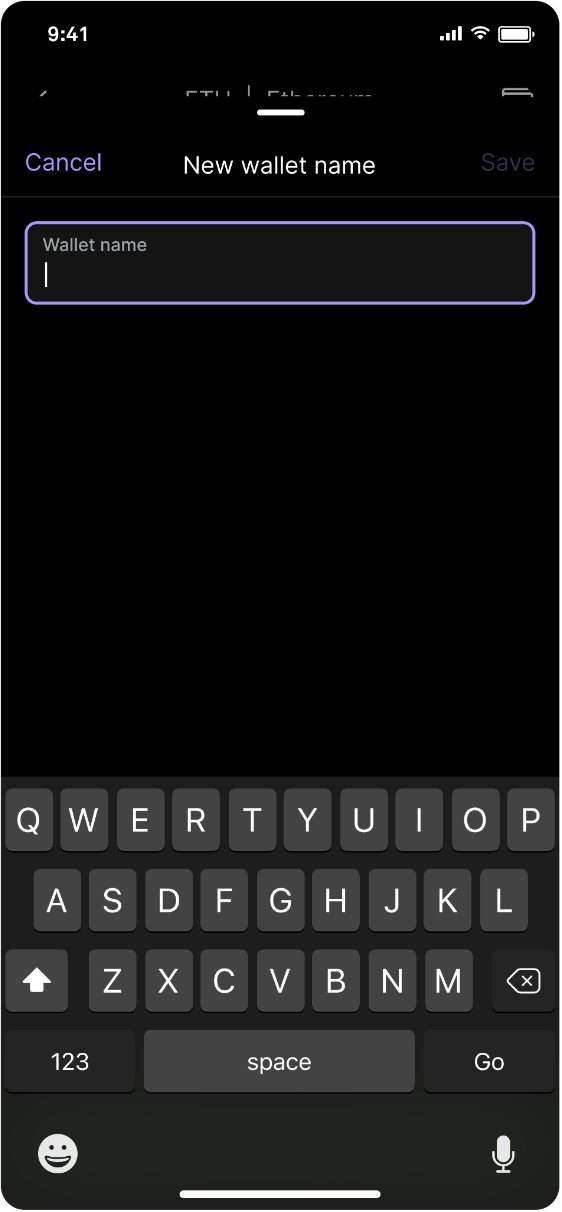
Proceed by tapping Download wallet key, then name the new wallet.
After you have saved your wallet key and named the wallet, you can copy or share your wallet deposit address.
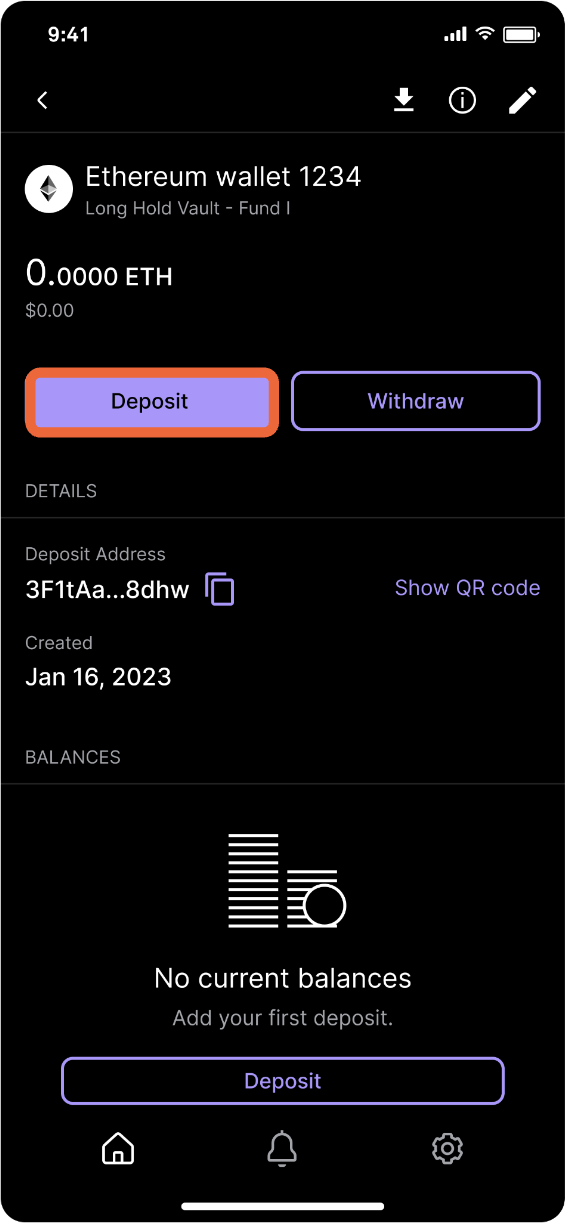
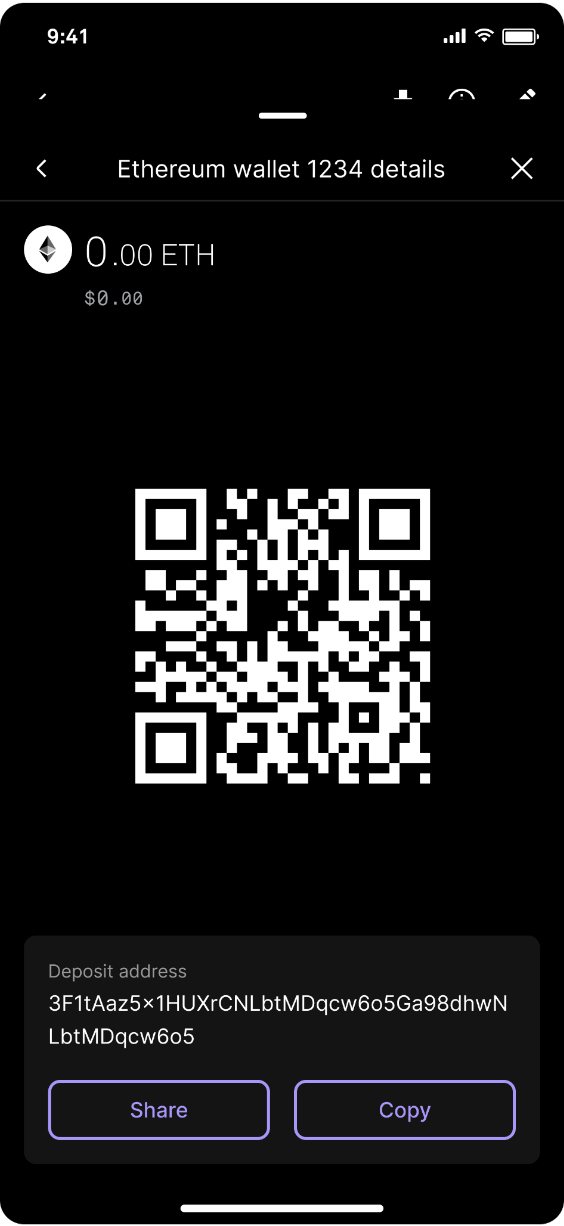
Tap Deposit to show the address and QR code. Copy or share your deposit address.
Updated about 1 year ago