
iPhone replacement
Replace an iPhone with access to your old device
First, download the Porto app onto your new device.
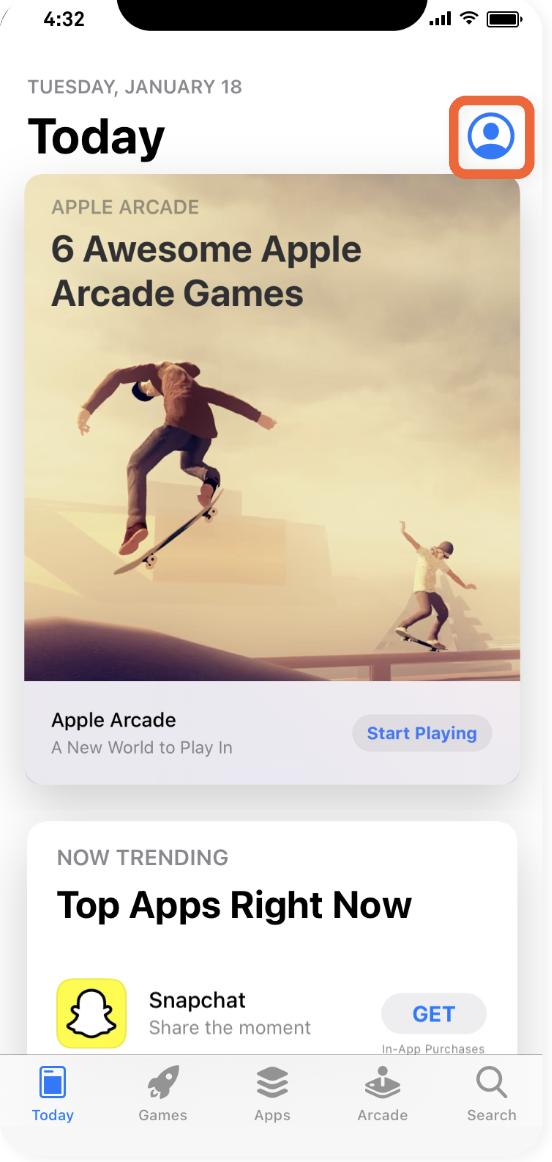
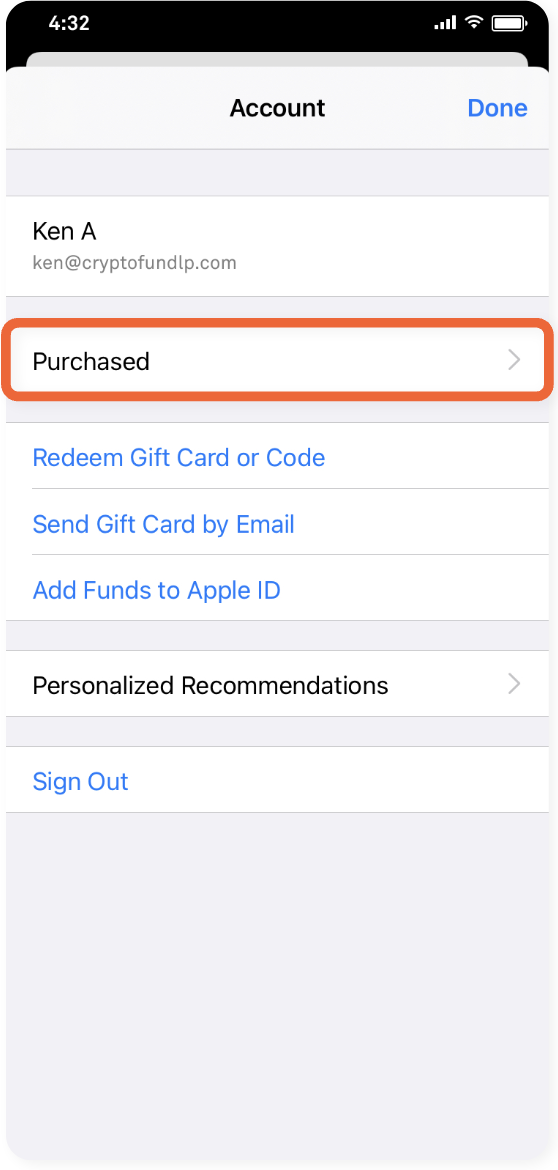
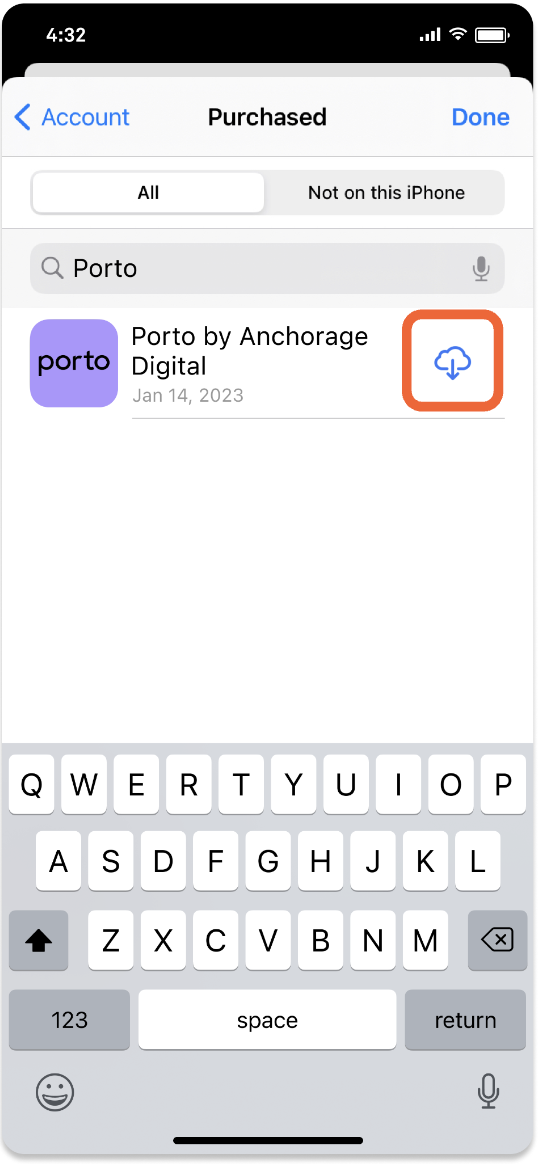
On your new device, tap your profile in the App Store, tap Purchased, then search for Porto by Anchorage Digital and install the mobile app.
Or you can simply re-download the Porto app by searching Porto by Anchorage Digital in the App Store.
Initiate replacement on your old device
Navigate to Settings in the old device, tap Replace my device, and follow the prompts on screen.
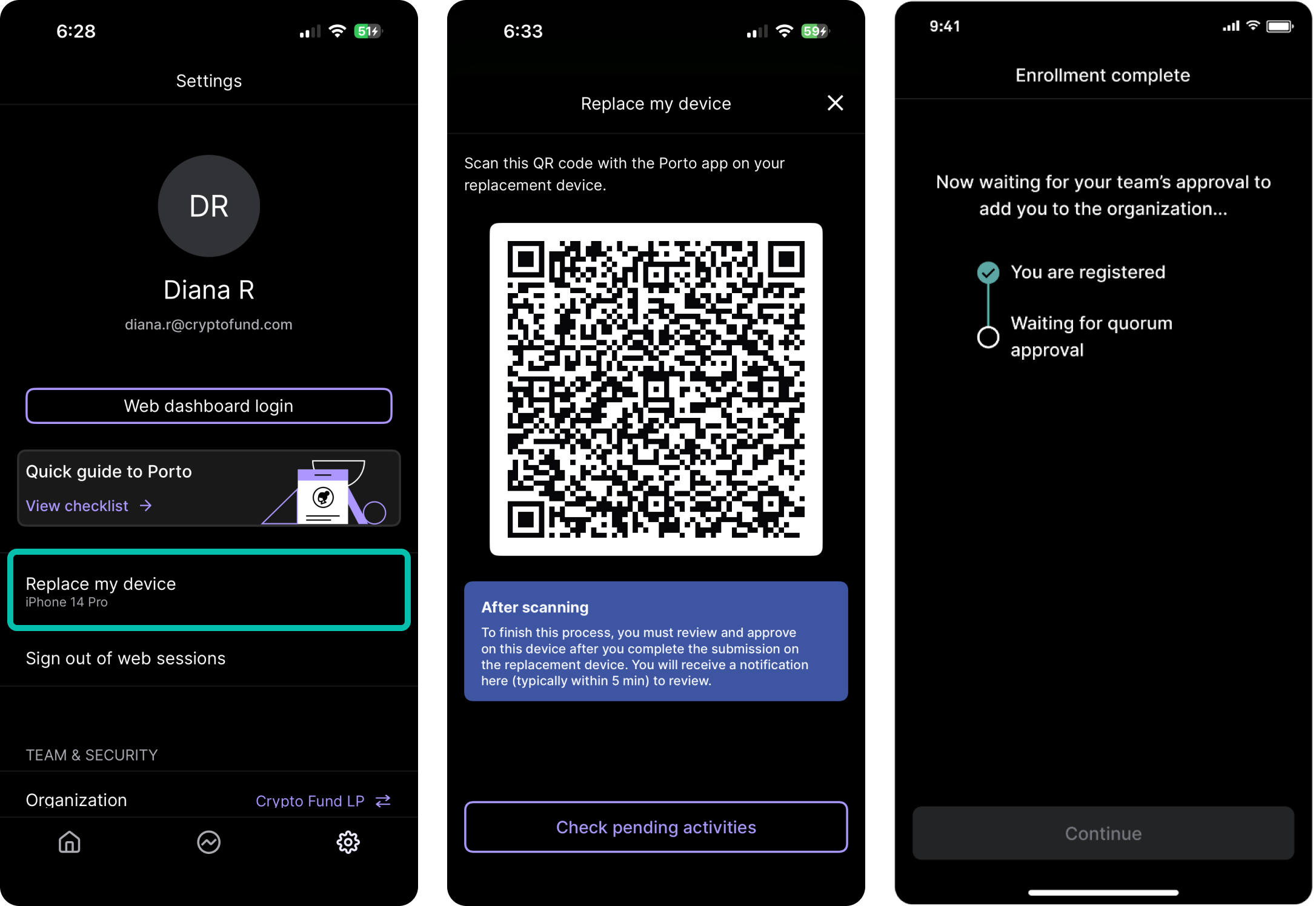
- On the old device in Settings, tap Replace my device to get a QR code
- Scan the QR code generated by the old device using the Porto app on your new device. You can select Join organization within the Porto app on your new device. Follow the instructions and submit biometric authentication on the old device to initiate the operation.
- Once complete, ask the administrators on the account to provide approval on their devices for the replace device operation.
Initiating a device replacement without access to your old device
Once the mobile app is downloaded onto your new device, contact [email protected] to initiate the device replacement operation. The old iPhone will be marked as lost. Only administrators can initiate and approve the replacement operation.
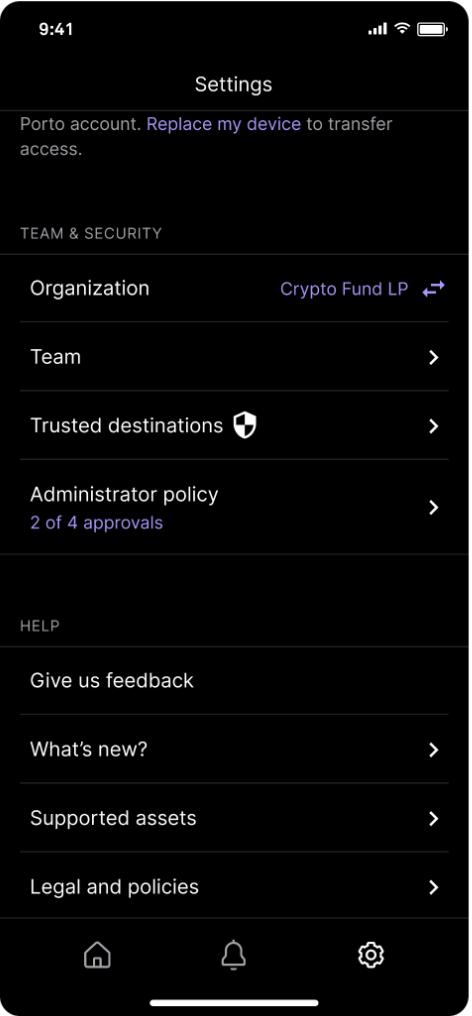
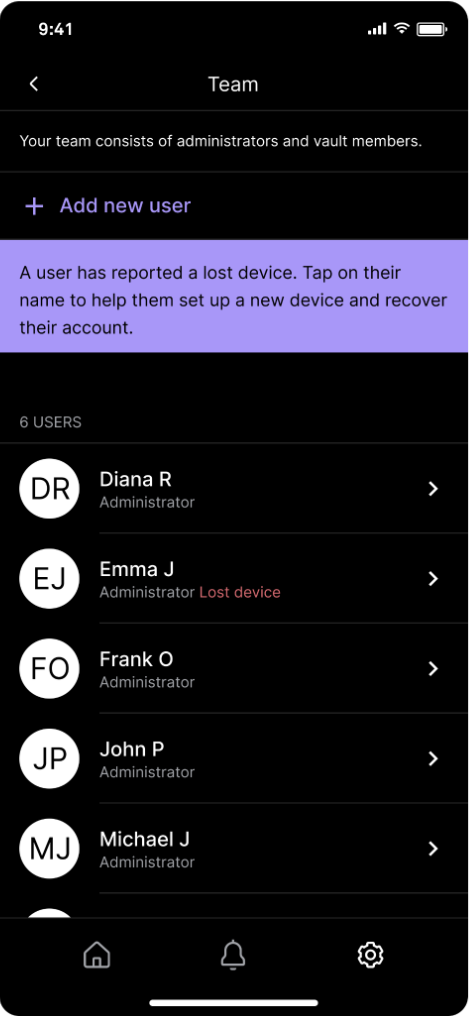
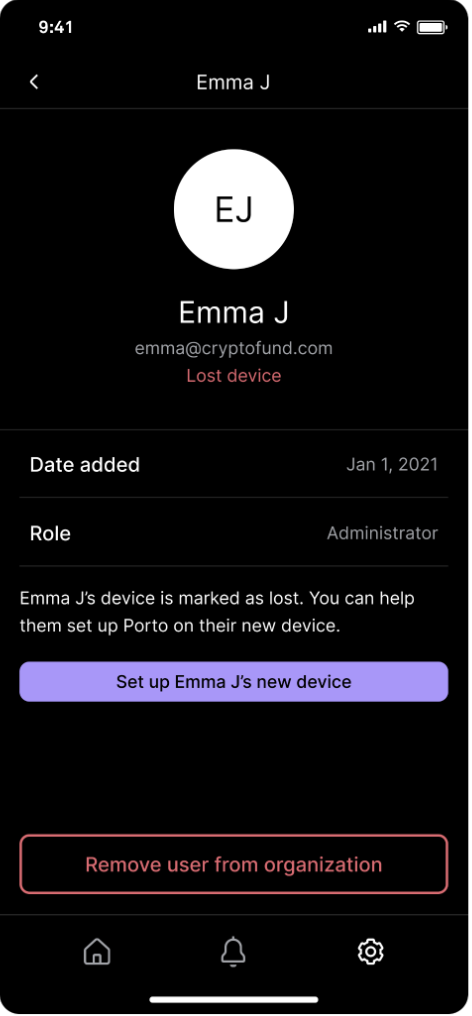
After a device is marked as lost by the Porto Support team, an administrator user on the account must go to Settings, then tap Team.
Tap Lost device next to the user’s name, then tap Set up new device.
Updated 4 months ago