
Administrator policies
Customizing administrator policies
All organization-level operations will follow the default administrator policy, unless administrators customize the policies per operation type: User management, trusted destination, vault and API management operations.
Note: Any changes are subject to quorum approval according to the policy set in place.

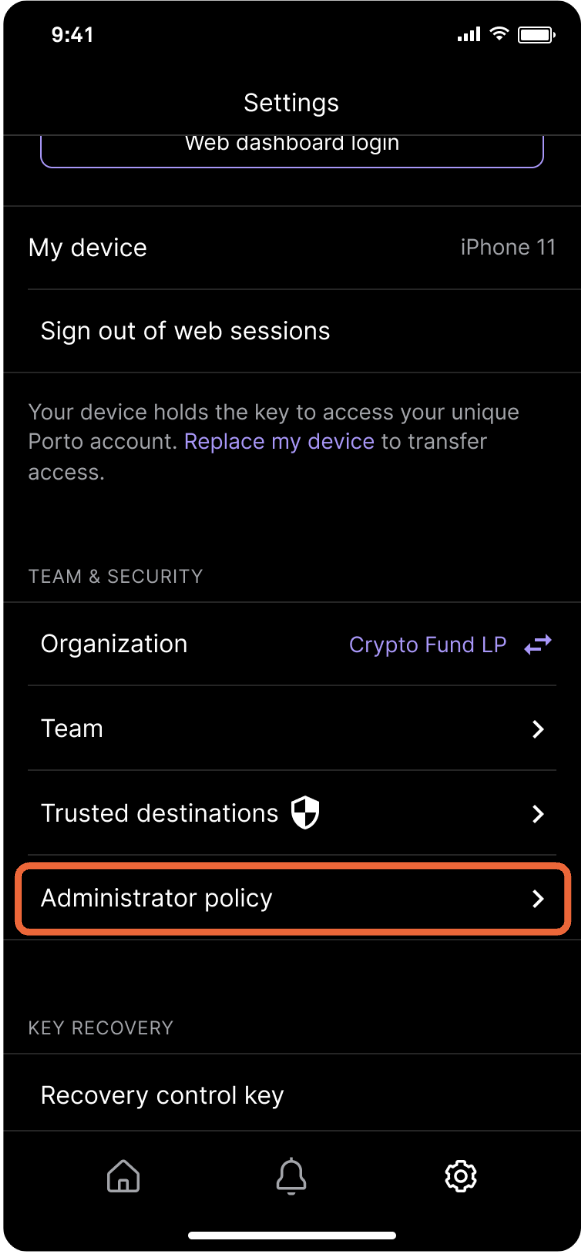
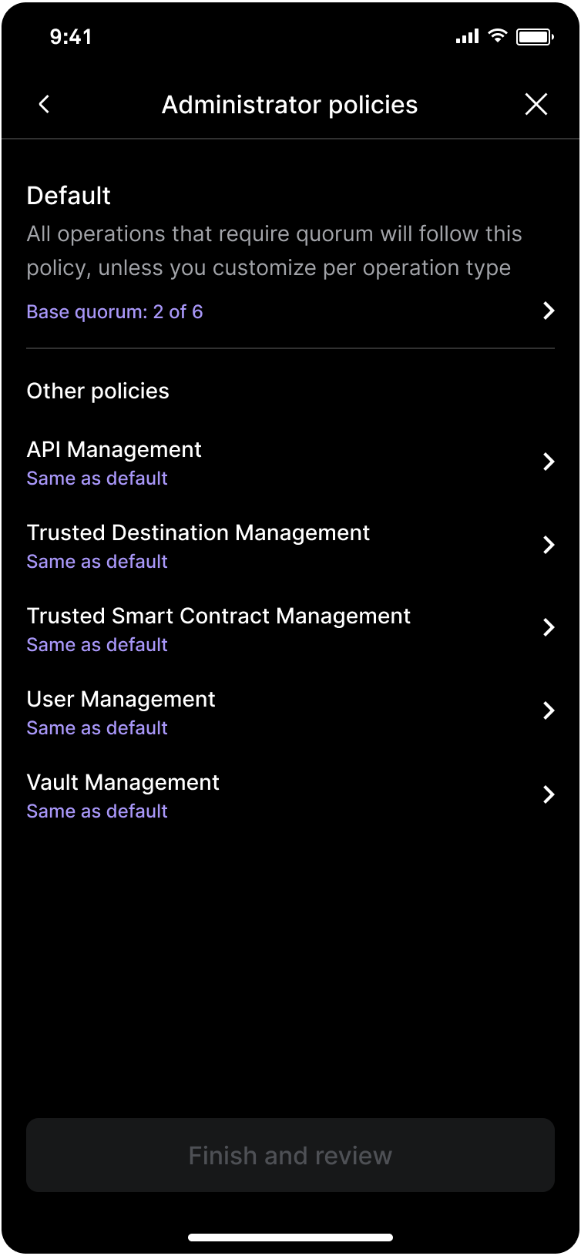
Tap the Settings icon, then tap Administrator policy and select the policy to be edited.
Editing base quorum members
To change the base quorum members in a given administrator policy, tap Administrator policy in Settings, select the policy, tap the three dots next to your base quorum and select Edit approvers.
Other administrators will get a notification to approve the action.
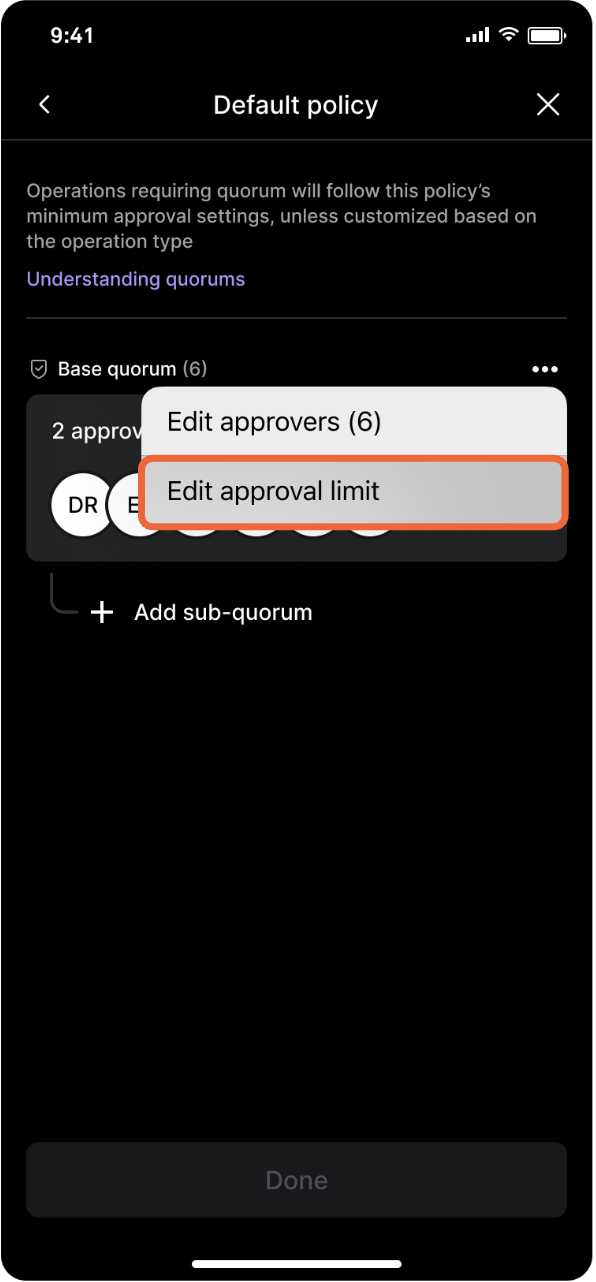
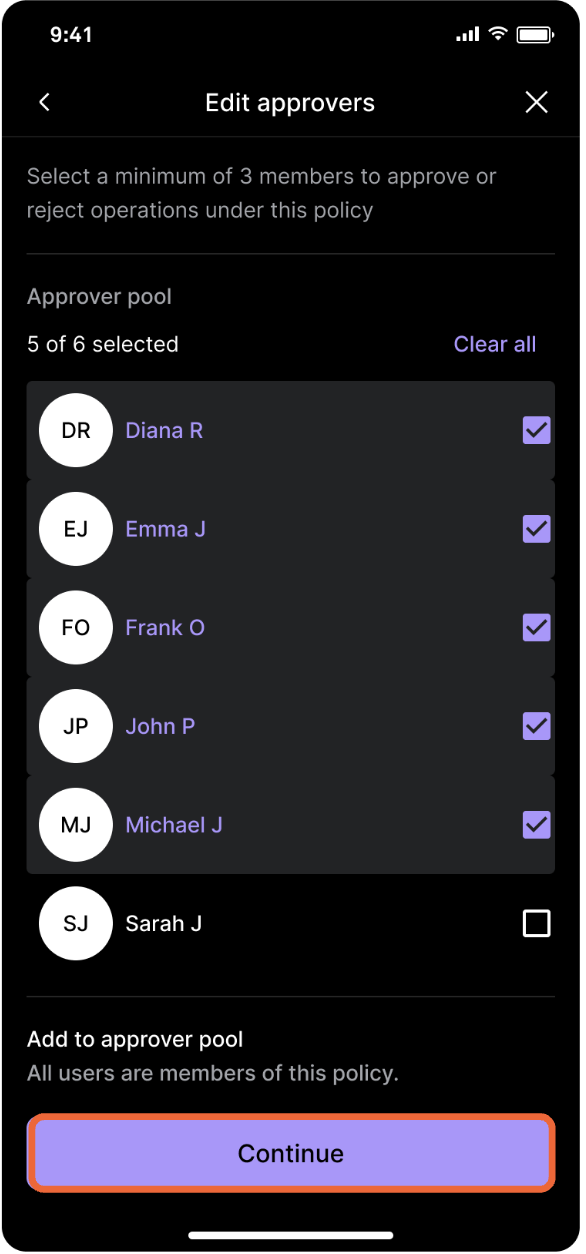
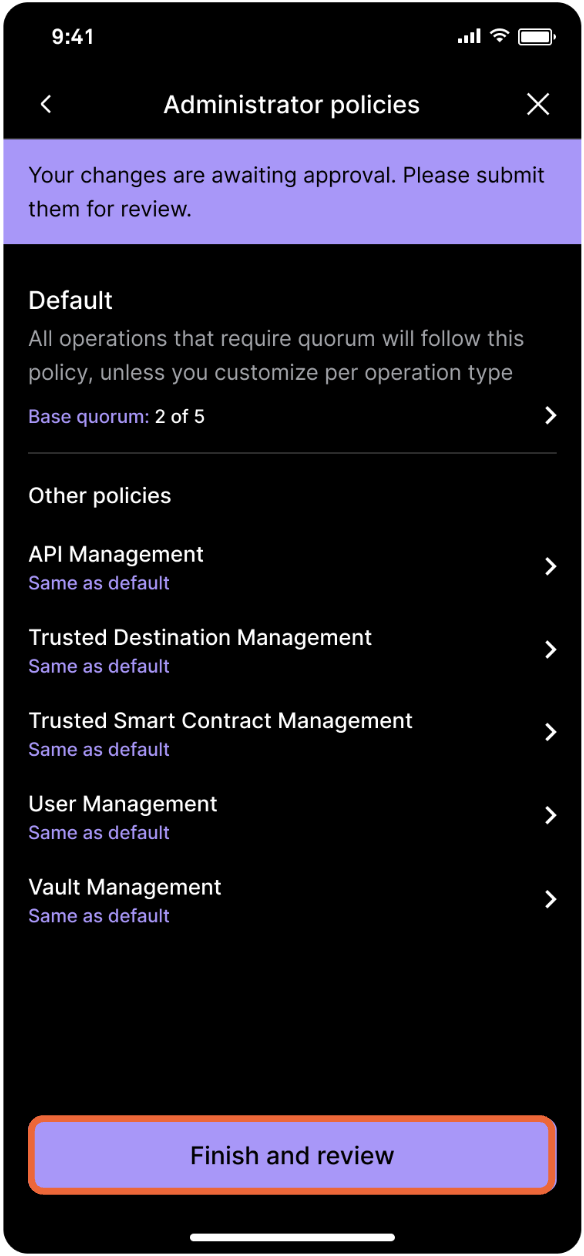
Select Edit approvers, then make the necessary changes and follow the prompts. Tap Finish and review and follow the prompts to submit biometric approval—quorum approval is required.
Editing base quorum approvals
To change the number of approvals in a base quorum of a given administrator policy, navigate to Administrator policy in Settings, select the policy, tap the three dots next to your base quorum and select Edit approval limit.
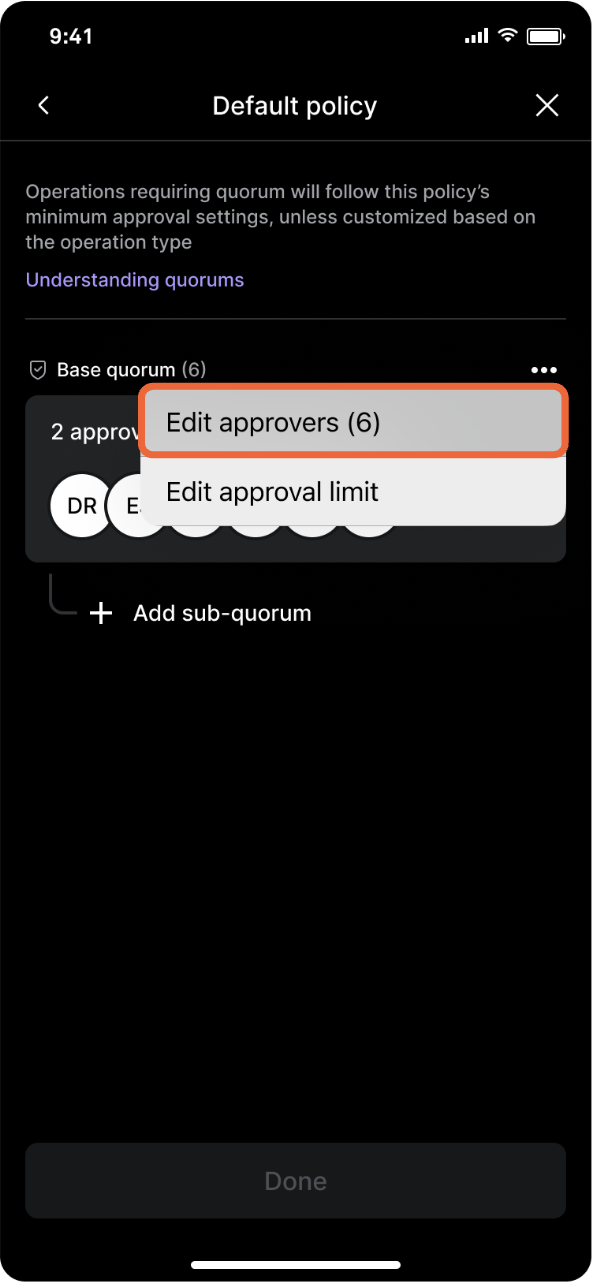
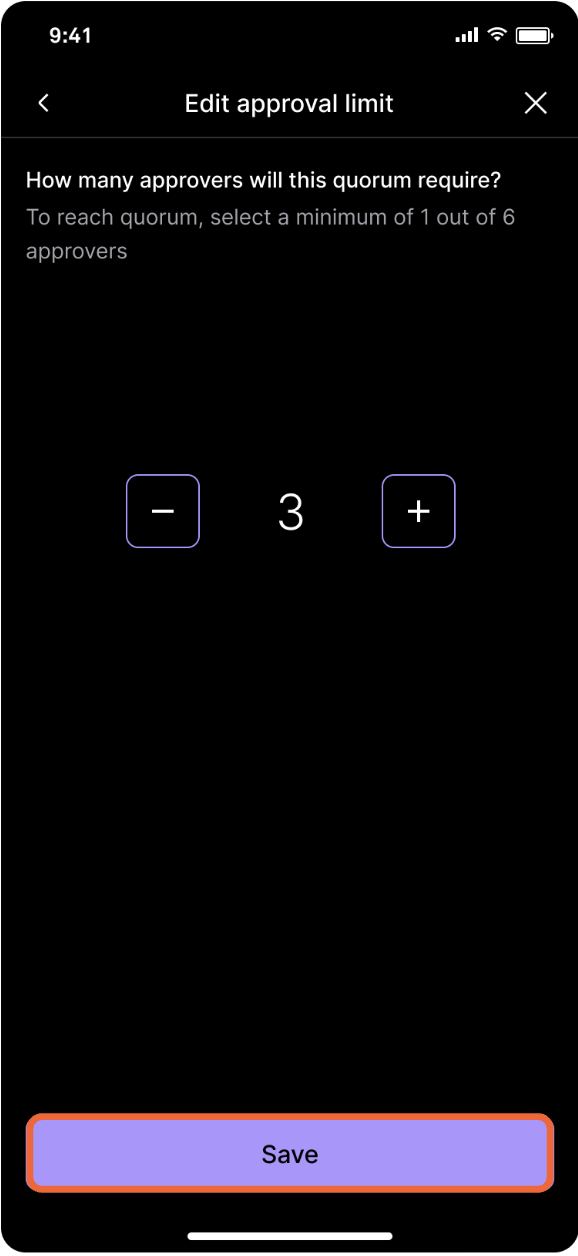
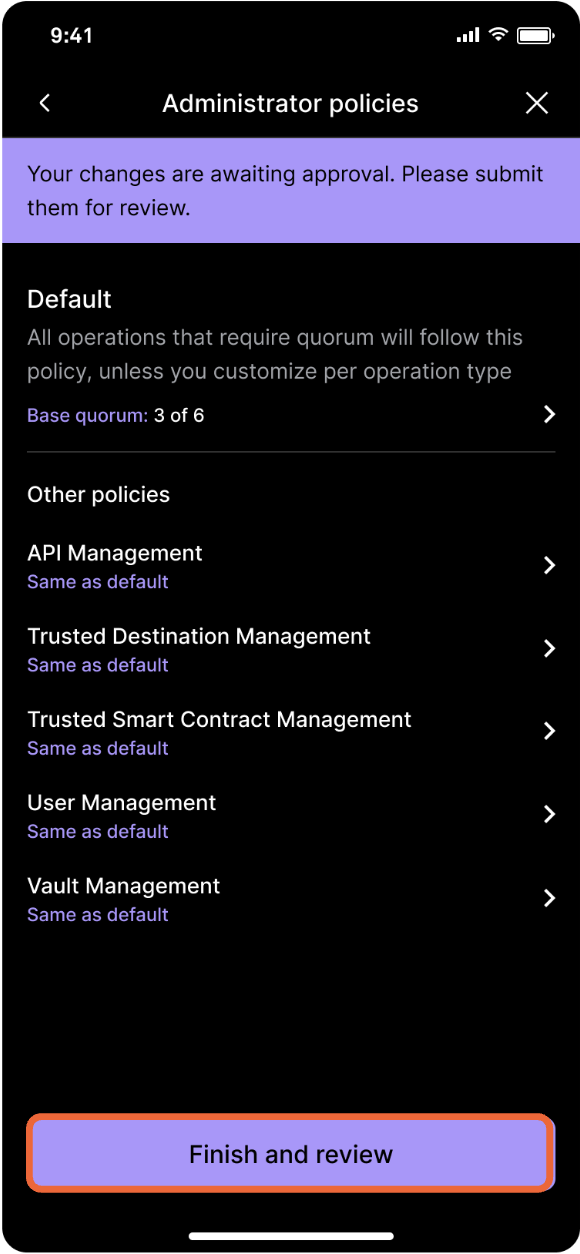
Select Edit approval limit, then select the number of quorum approvers. Tap Save and follow the prompts
Tap Finish and review and follow the prompts to submit biometric approval—quorum approval is required.
Adding a sub-quorum
For each account-level policy, administrators are able to add as many sub-quorums as needed. Each sub-quorum establishes a prerequisite, ensuring that any operation falling under that policy is not completed without a pre-set N number of approvals by the sub-quorum members.
Navigate to Administrator policies in Settings, select the policy, tap Add sub-quorum and follow the prompts.
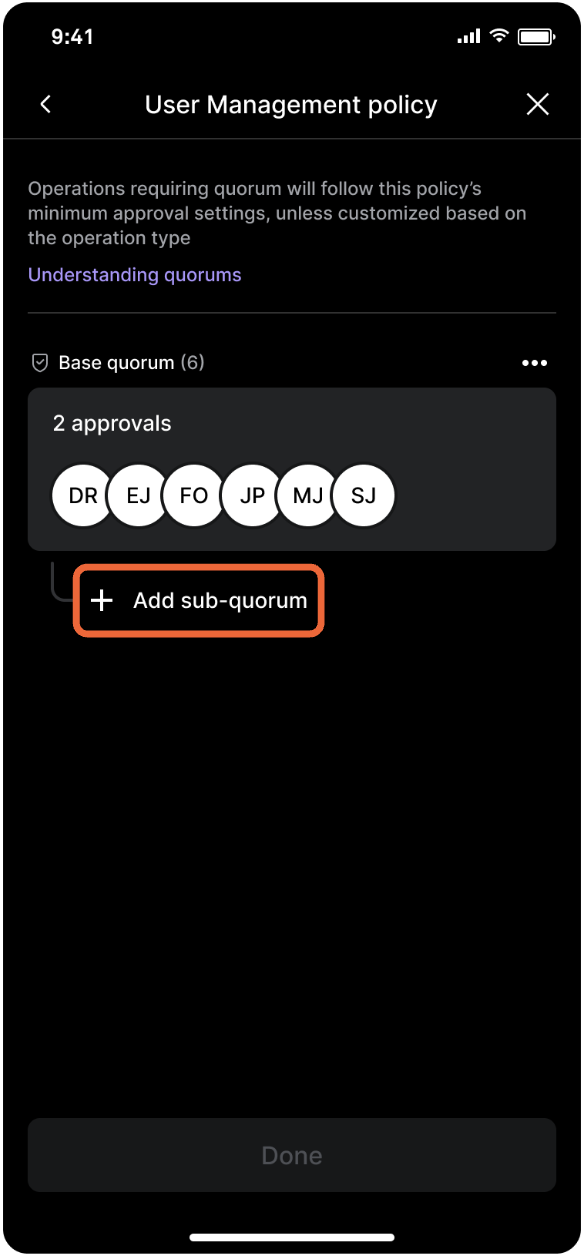
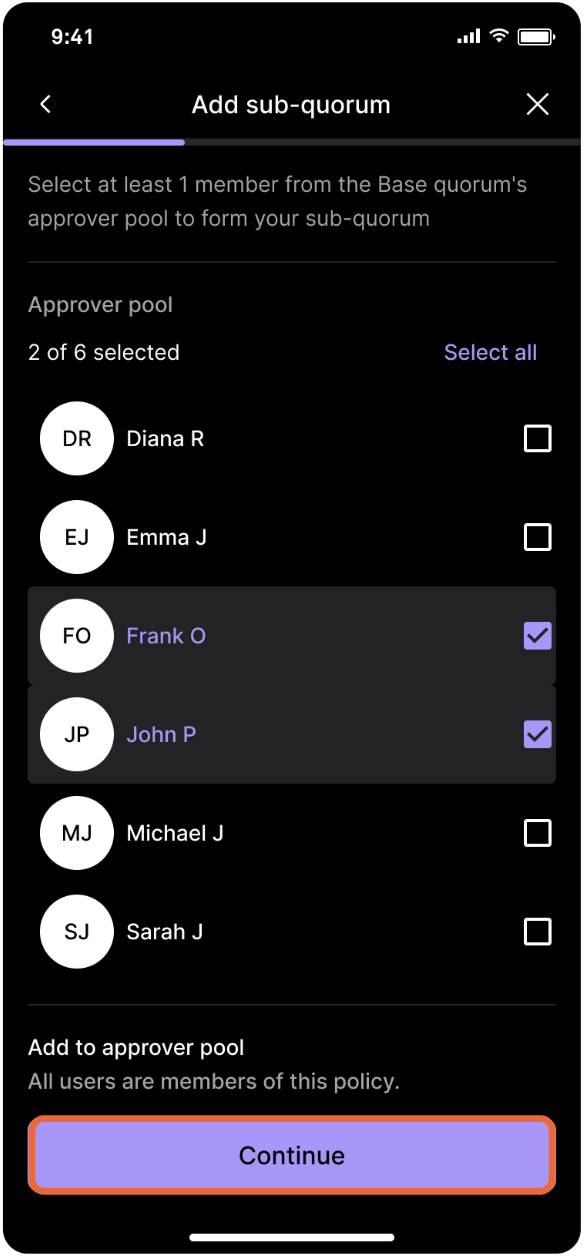
Select Add sub-quorum. From the base quorum approval pool, select the sub-quorum members and tap Continue.
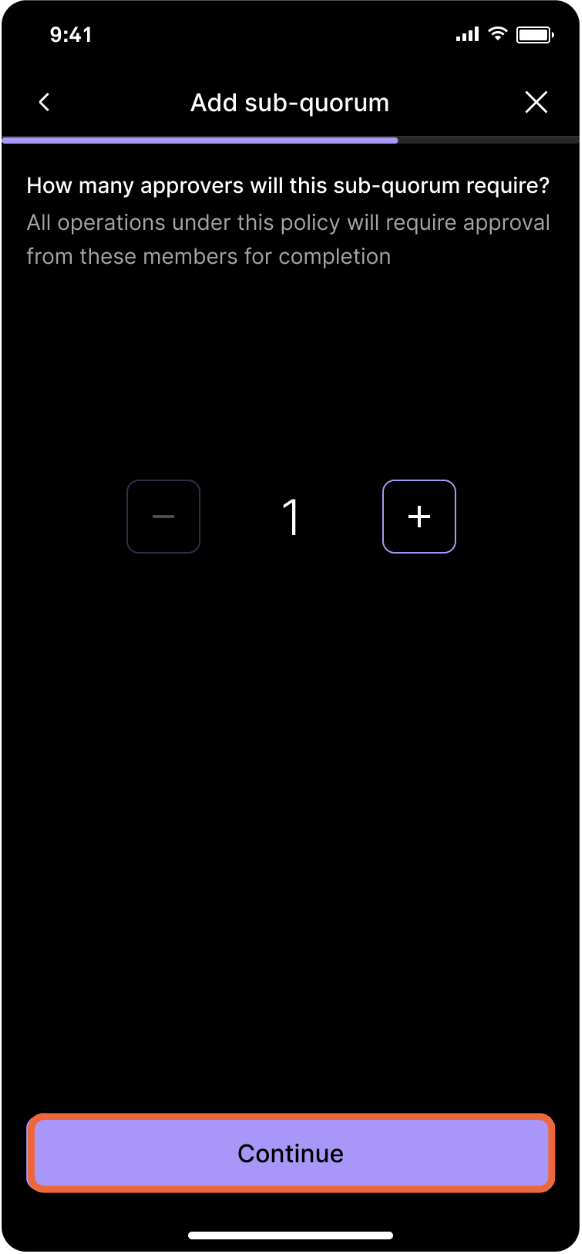
Set the number of approvals required from the previously selected set of sub-quorum members and tap Continue.
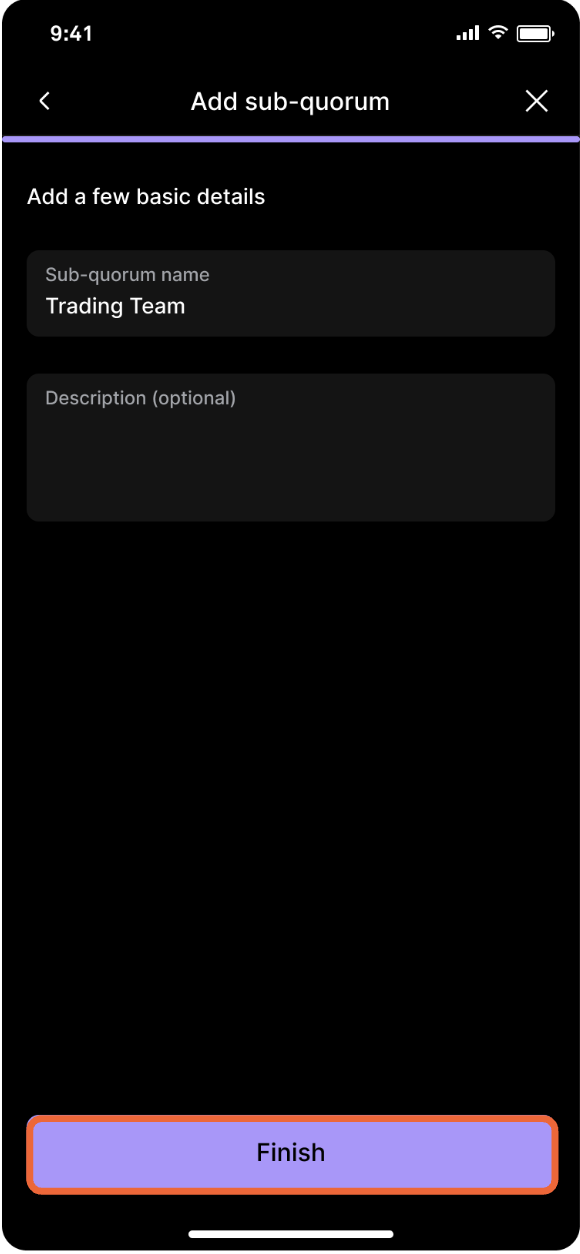
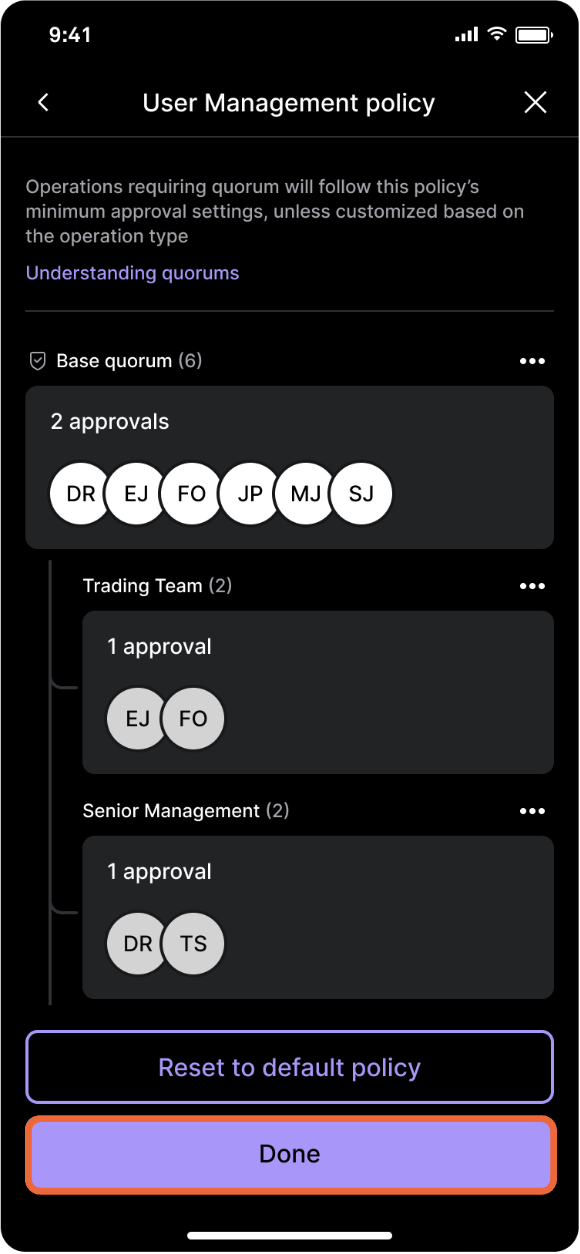
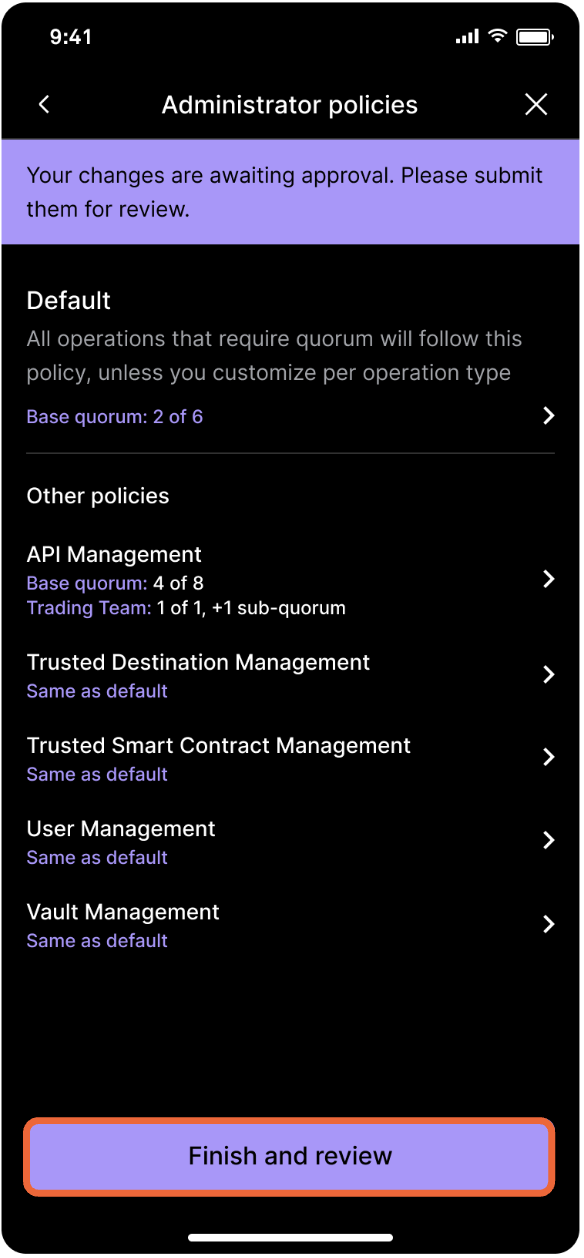
Give the sub-quorum a name and description (optional). Review the sub-quorum details and/or add more sub-quorums add needed. Tap Finish and review and follow the prompts to submit biometric approval—quorum approval is required.
Editing sub-quorum details
Administrators with may edit a sub-quorum’s name and description if circumstances change. Navigate to Administrator policies in Settings, select the policy, tap Edit details and follow the prompts.
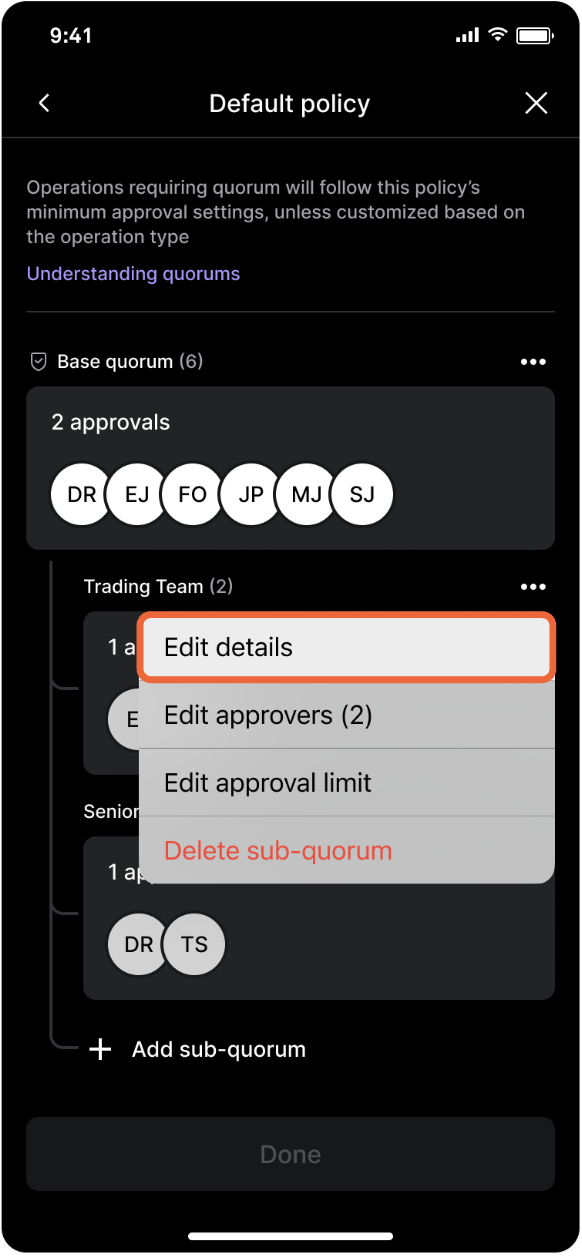
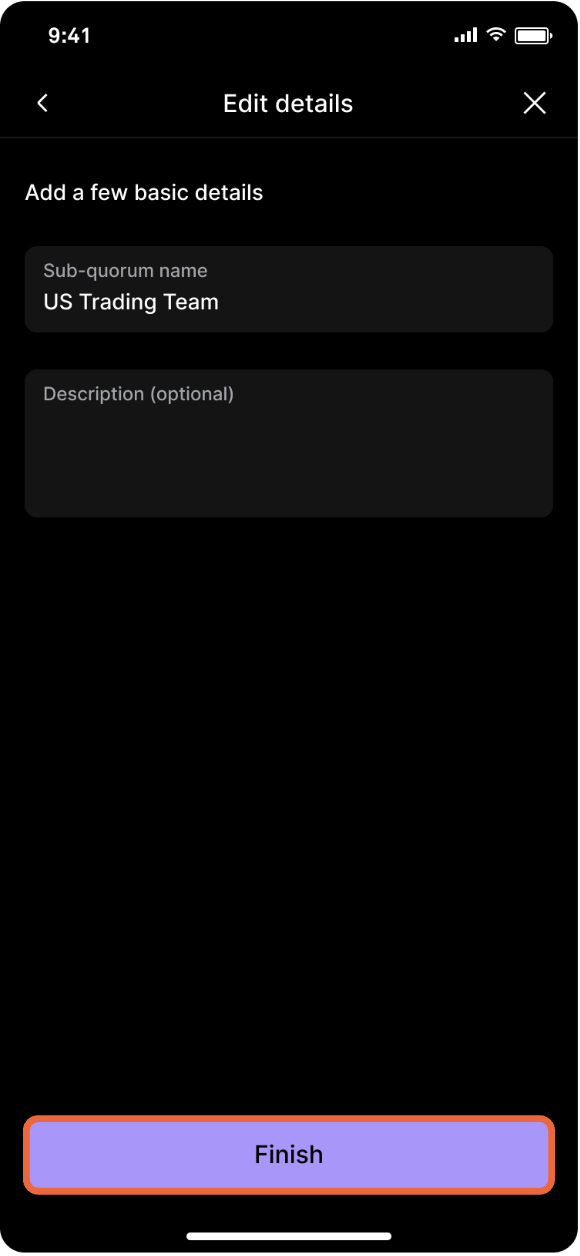
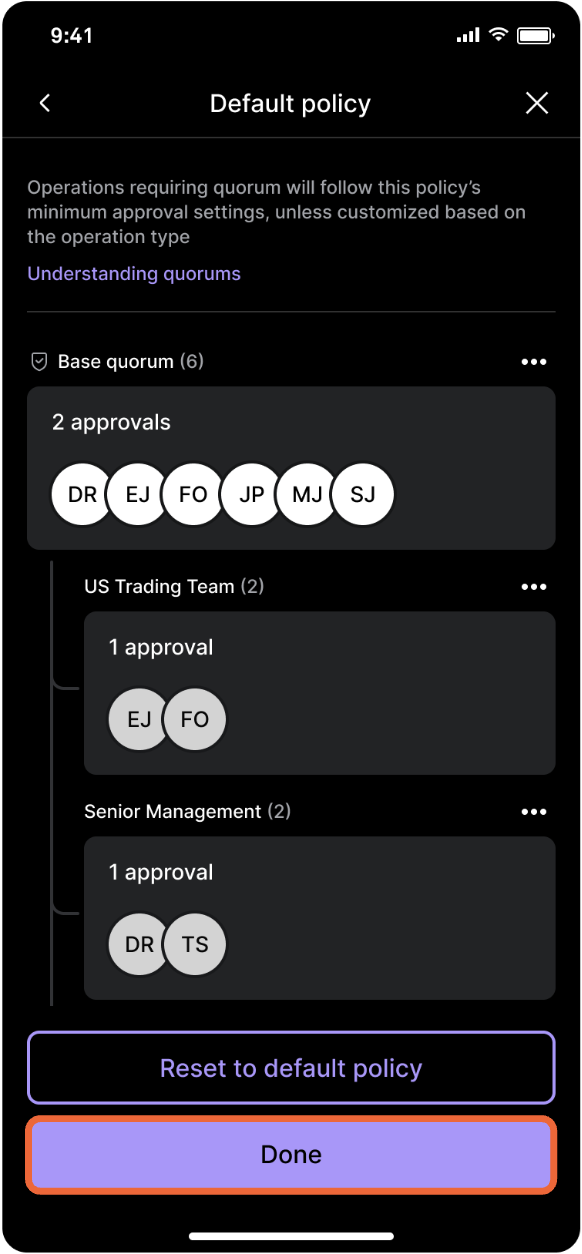
Tap Edit details on the settings menu of the sub-quorum you want to edit. Make the necessary adjustments and tap Complete. Tap Done and follow the prompts to submit biometric approval—quorum approval is required.
Editing sub-quorum members
To change the sub-quorum members in a given account policy, navigate to Administrator policies in Settings and select the policy. Then tap the three dots next to the sub-quorum you want to edit and select Edit approvers.
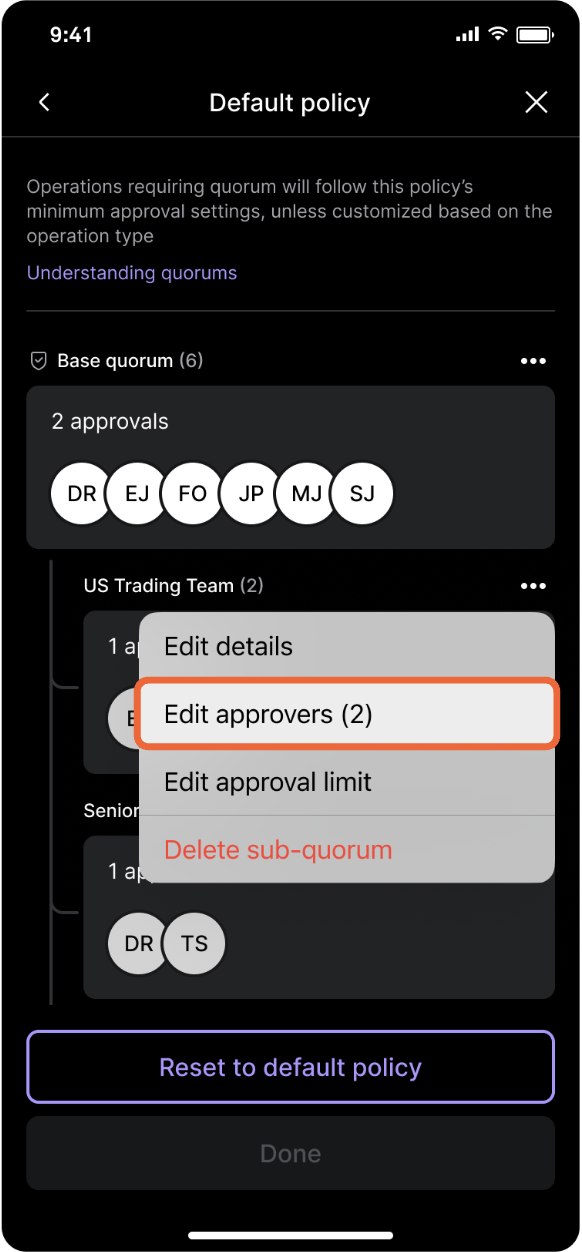
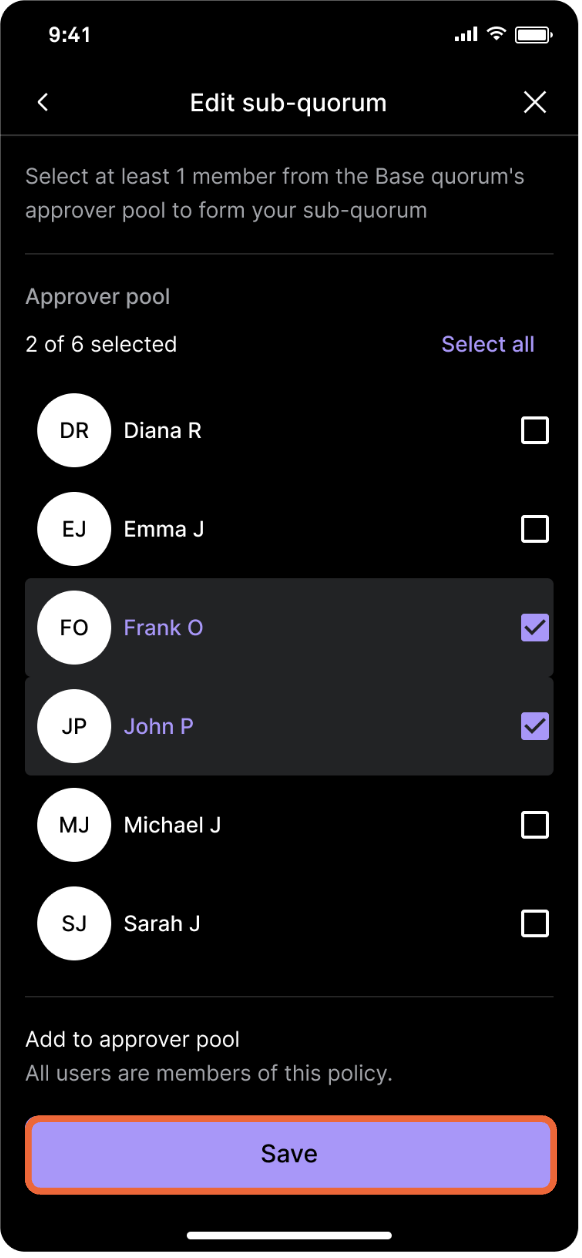
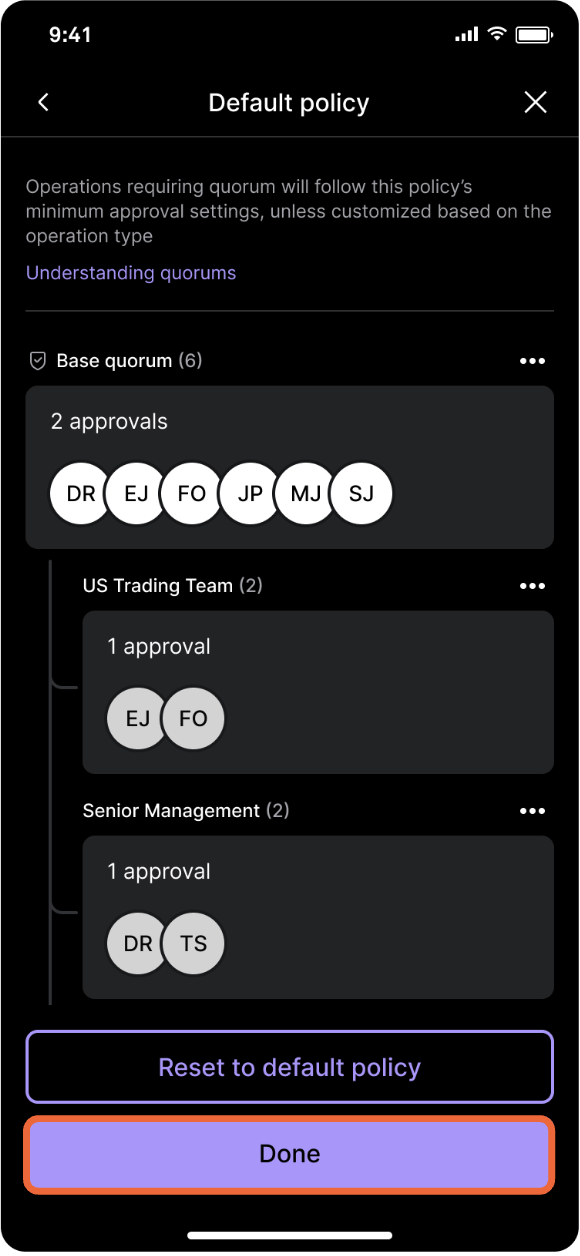
Select Edit approvers on the settings menu of the sub-quorum you want to edit. Make the necessary changes and follow the prompts. Tap Done and follow the prompts to submit biometric approval—quorum approval is required.
Editing sub-quorum approvals
To edit the number of approvals required in a policy’s sub-quorum, first tap, navigate to Administrator policies in Settings and select the policy. Then tap the 3 dots next to the sub-quorum you want to edit and select Edit approval limit.
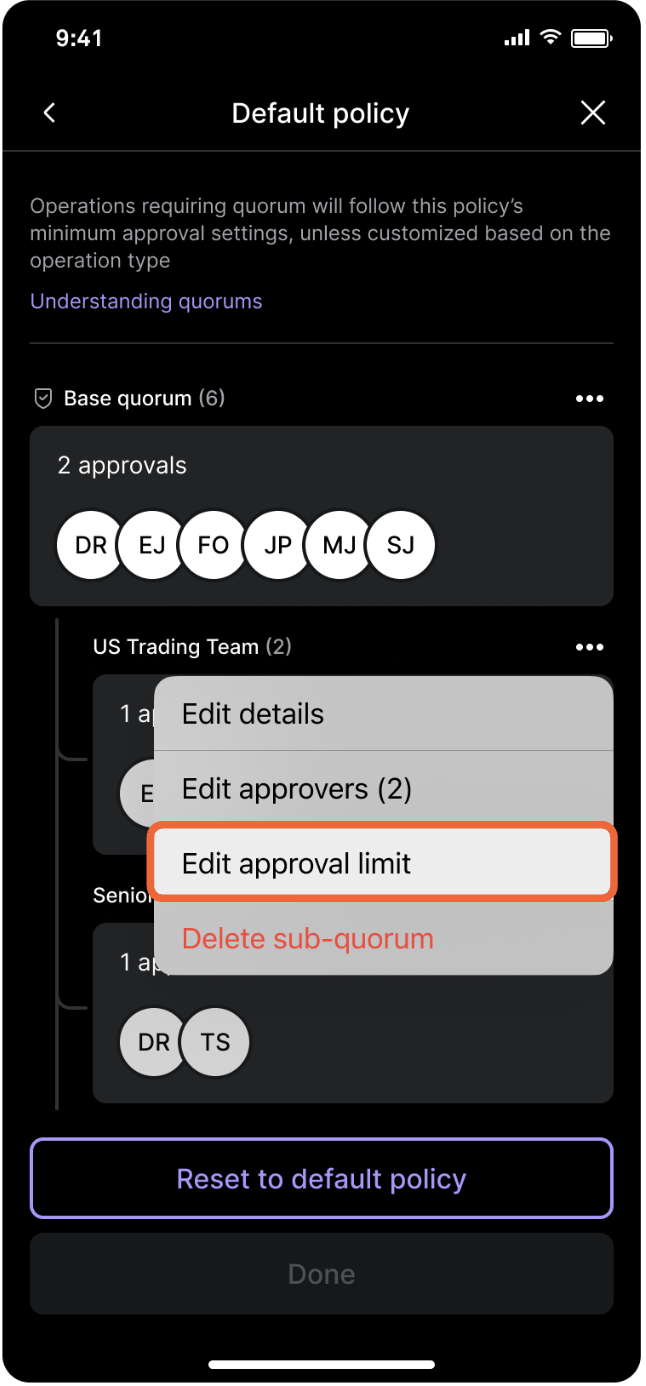
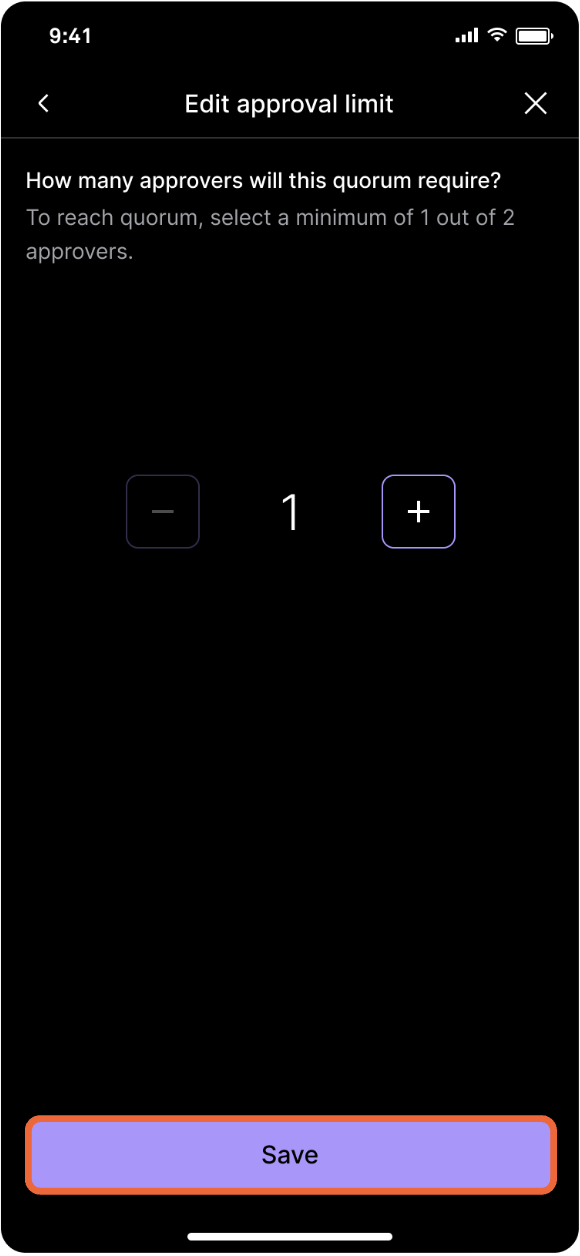
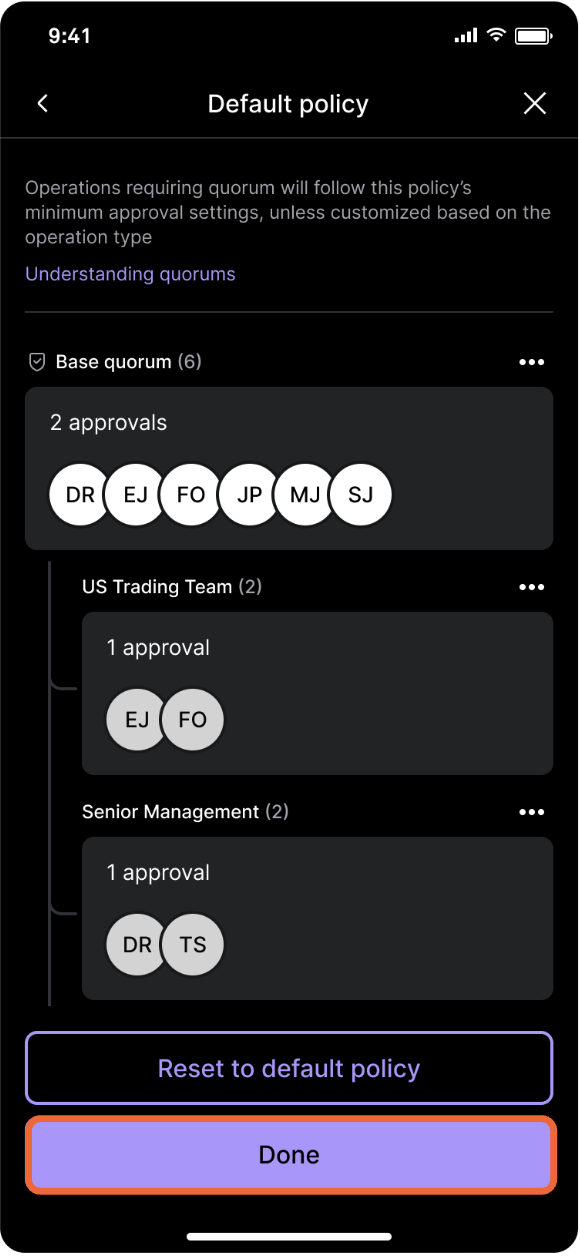
Select Edit approval limit on the settings menu of the sub-quorum you want to edit. Select the number of quorum approvers, tap Save and follow the prompts. Tap Done and follow the prompts to submit biometric approval—quorum approval is required.
Deleting a sub-quorum
To delete an account policy’s sub-quorum, first tap Administrator policies in Settings and select the policy you want to edit. Then tap the 3 dots next to the sub-quorum you want to edit and select Delete sub-quorum
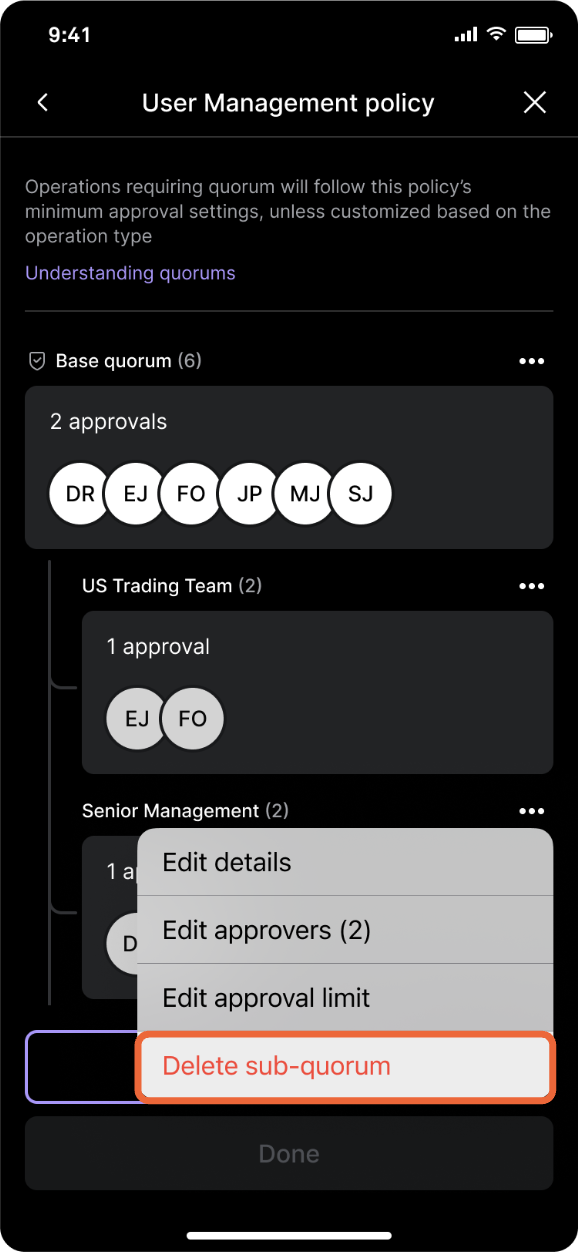
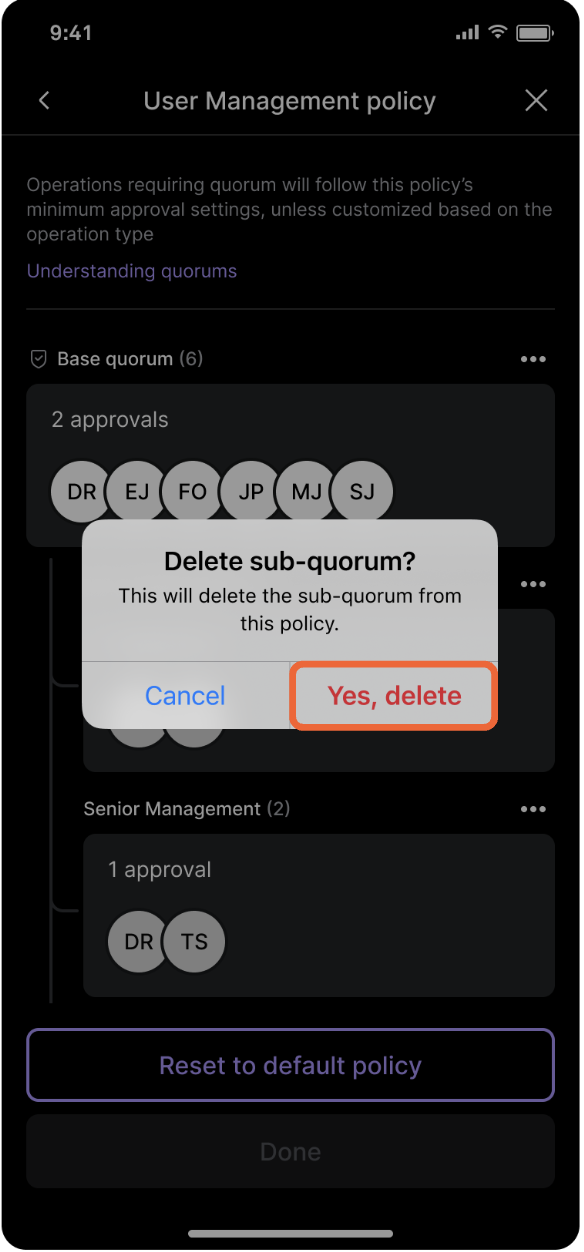
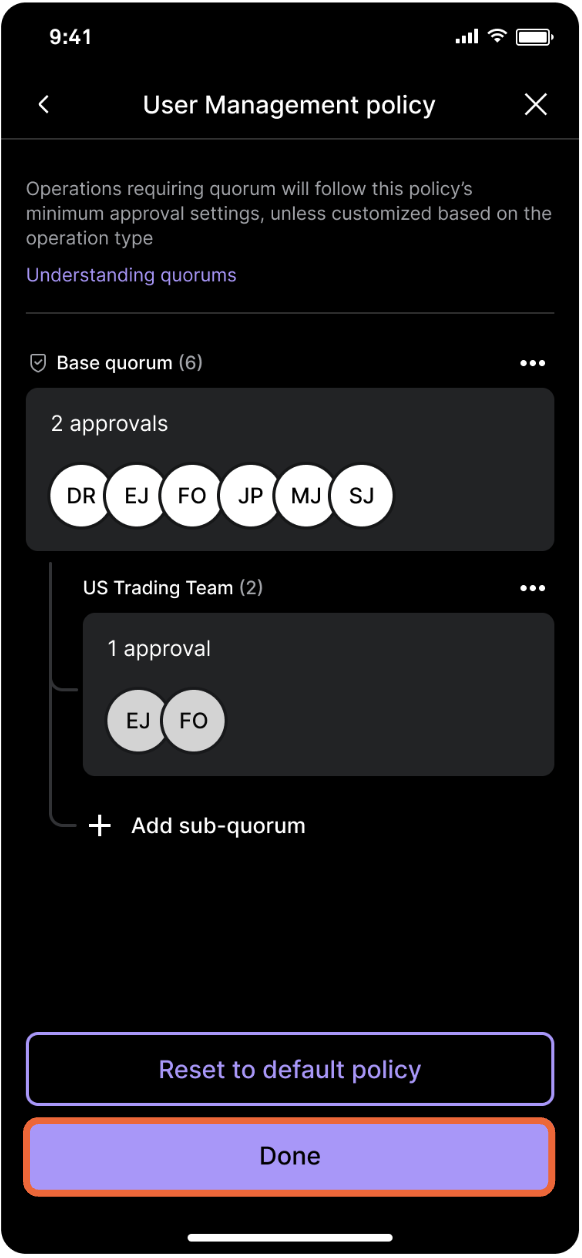
Select Delete on the settings menu of the sub-quorum you want to edit. Confirm that you want to delete the sub-quorum. Tap Done and follow the prompts to submit biometric approval—quorum approval is required.
Resetting to the default policy
To reset a customized policy to the default policy, tap the policy, select Reset to default policy, and follow the prompts.
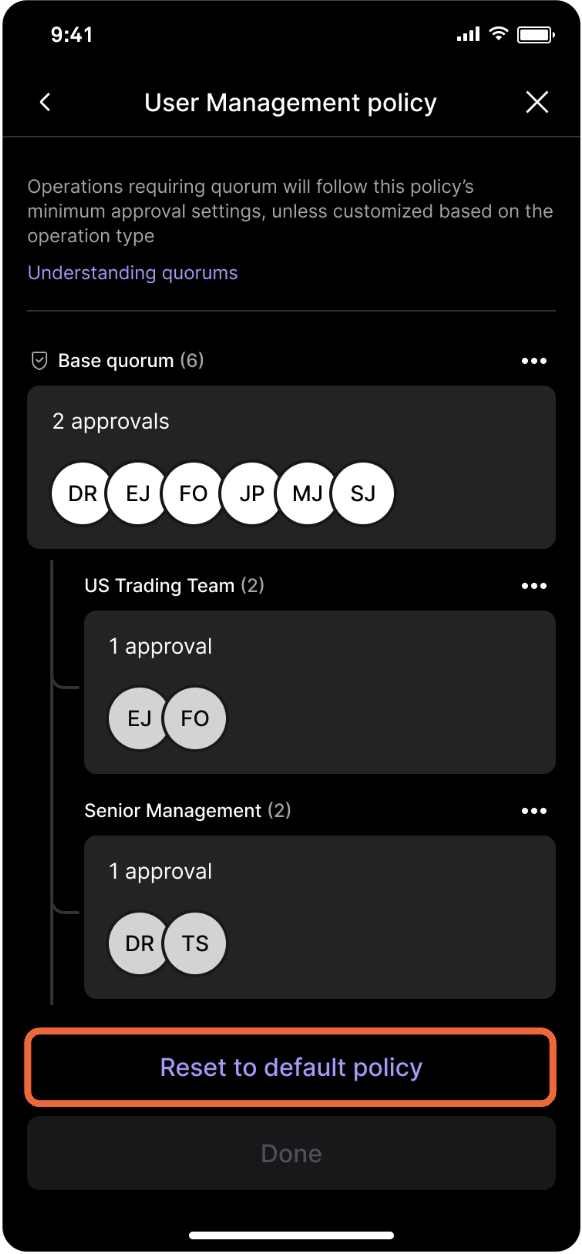
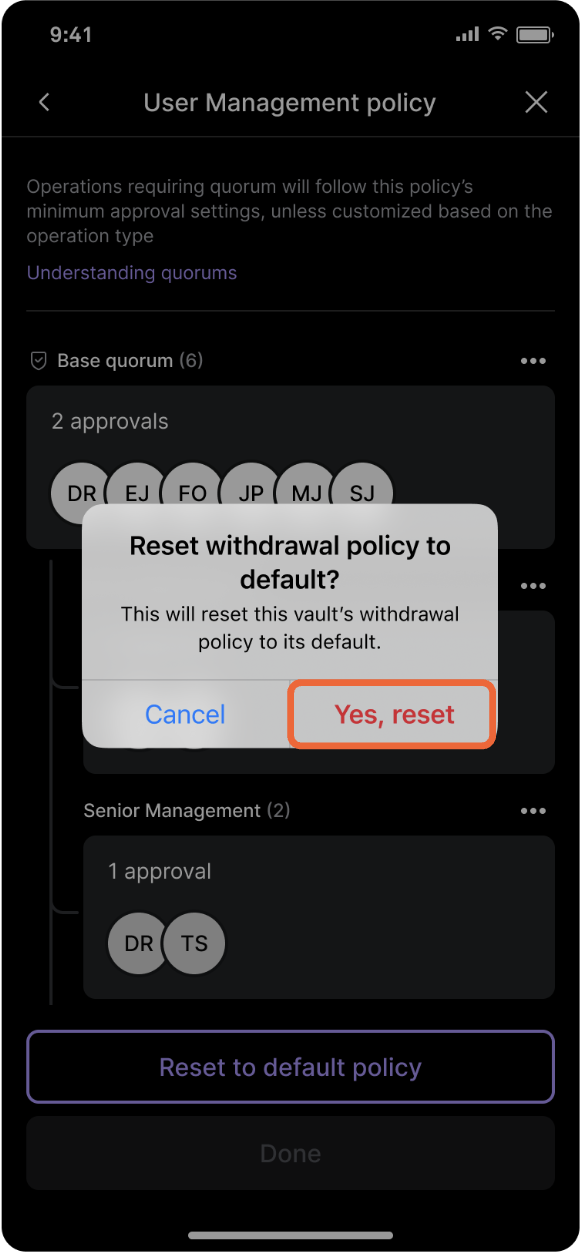
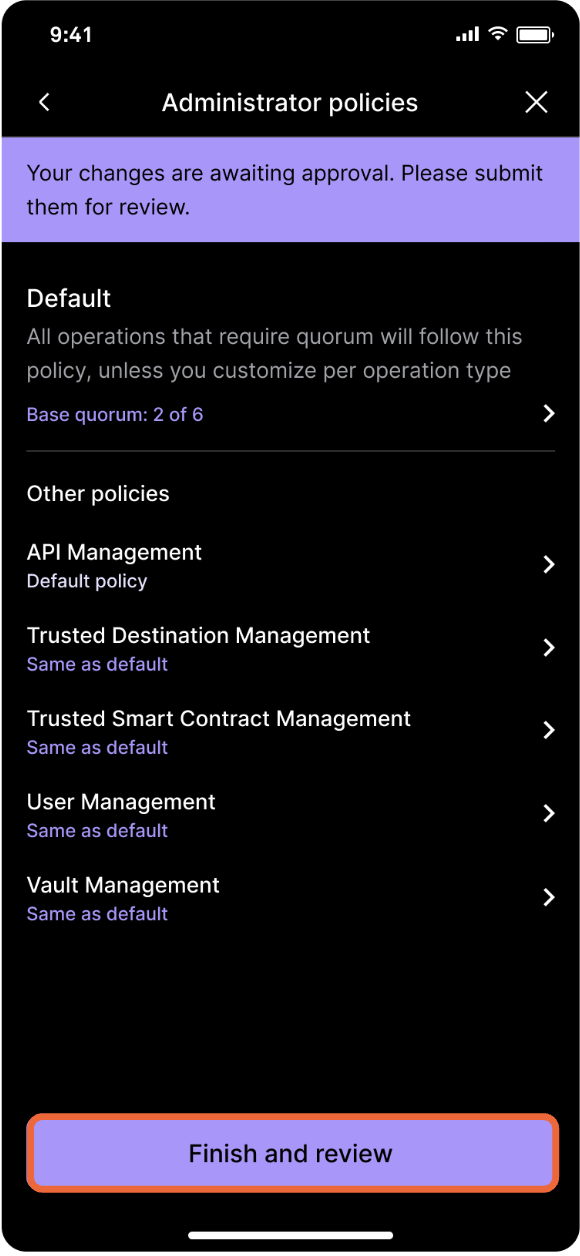
Select Reset to default policy. Confirm that you want to reset the policy. Tap Finish and review and follow the prompts to submit biometric approval—quorum approval is required.
Updated 7 months ago