
Adding a sub-quorum
Adding a sub-quorum
Administrators can add multiple sub-quorums to any rule within an admin or vault policy. A sub-quorum acts as an additional security layer, ensuring that an operation cannot be completed unless a specific number of approvals are received from a designated group of users (e.g., "2 approvals from the Legal Team").
How to add a sub-quorum
- Navigate to Settings, then Policies.
- Select the relevant admin policy or vault policy.
- Tap Rules.
- Tap the options menu (...) next to the rule you want to modify and select Edit rule.
- Scroll down and tap Add sub-quorum.
- Select the members for this specific group and define the number of required approvals.
Saving changes
Tap Continue, then Save changes. You will be prompted to submit biometric approval.
Note: This action requires quorum approval. Other administrators will receive a notification to review and confirm the update.
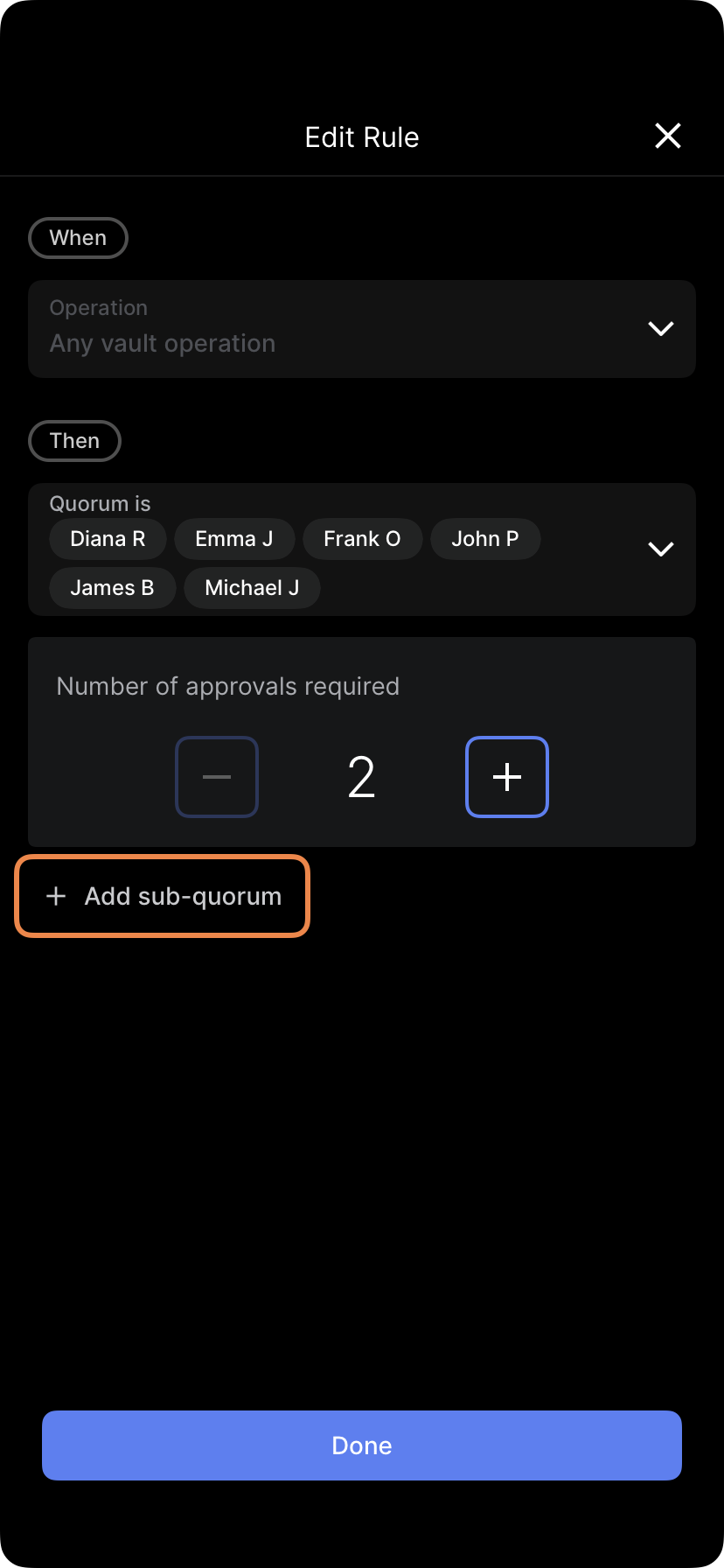
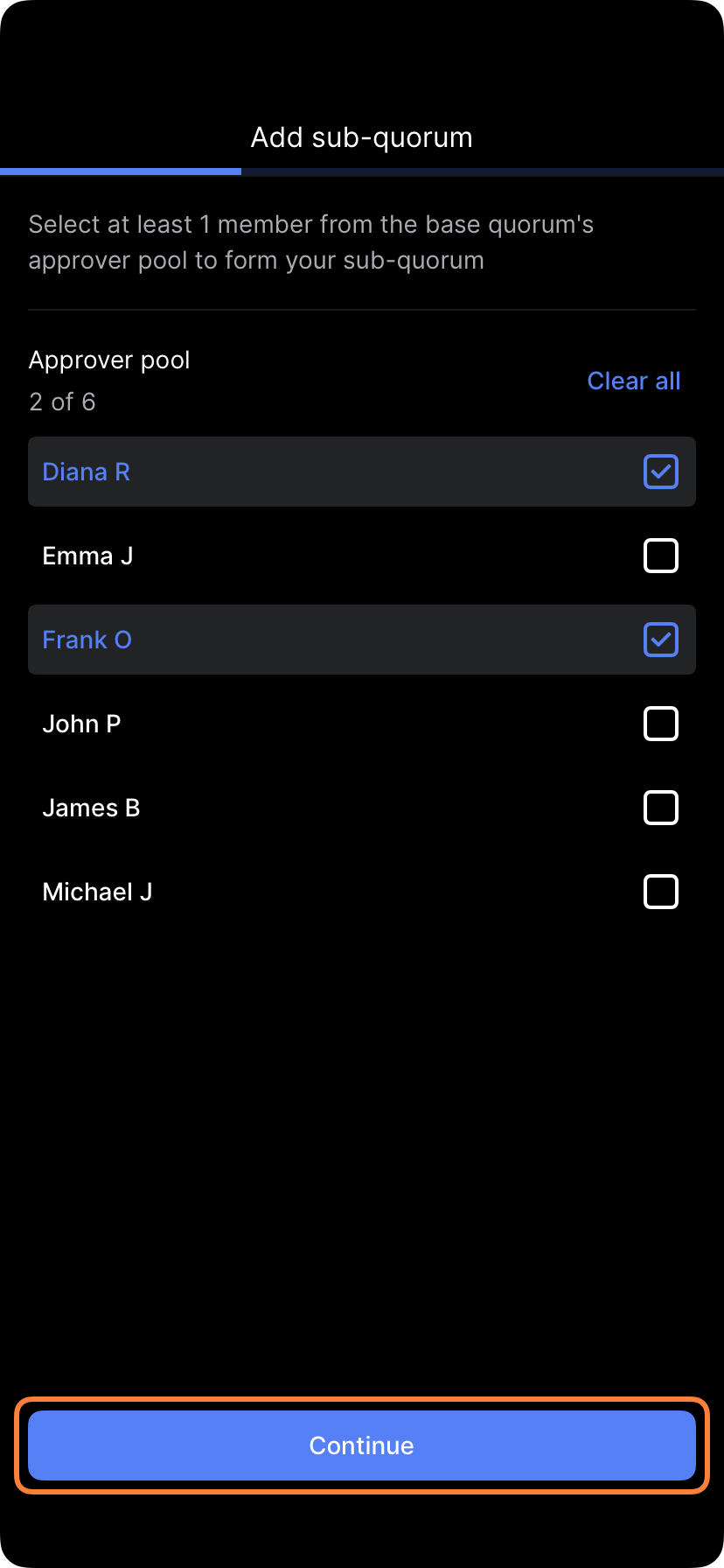
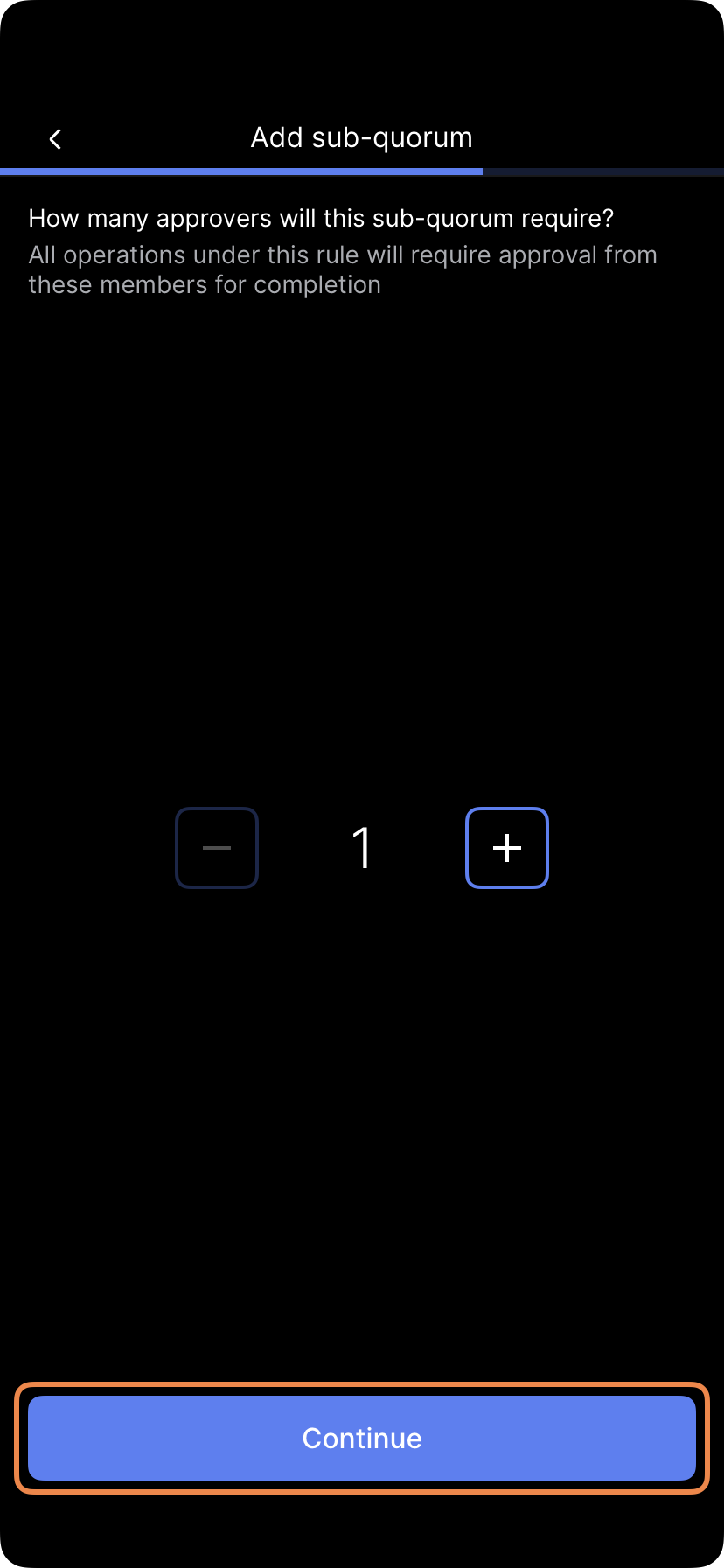
Select Add sub-quorum. Choose specific members from the base quorum pool and tap Continue. Set the number of required approvals for this group, then tap Continue.
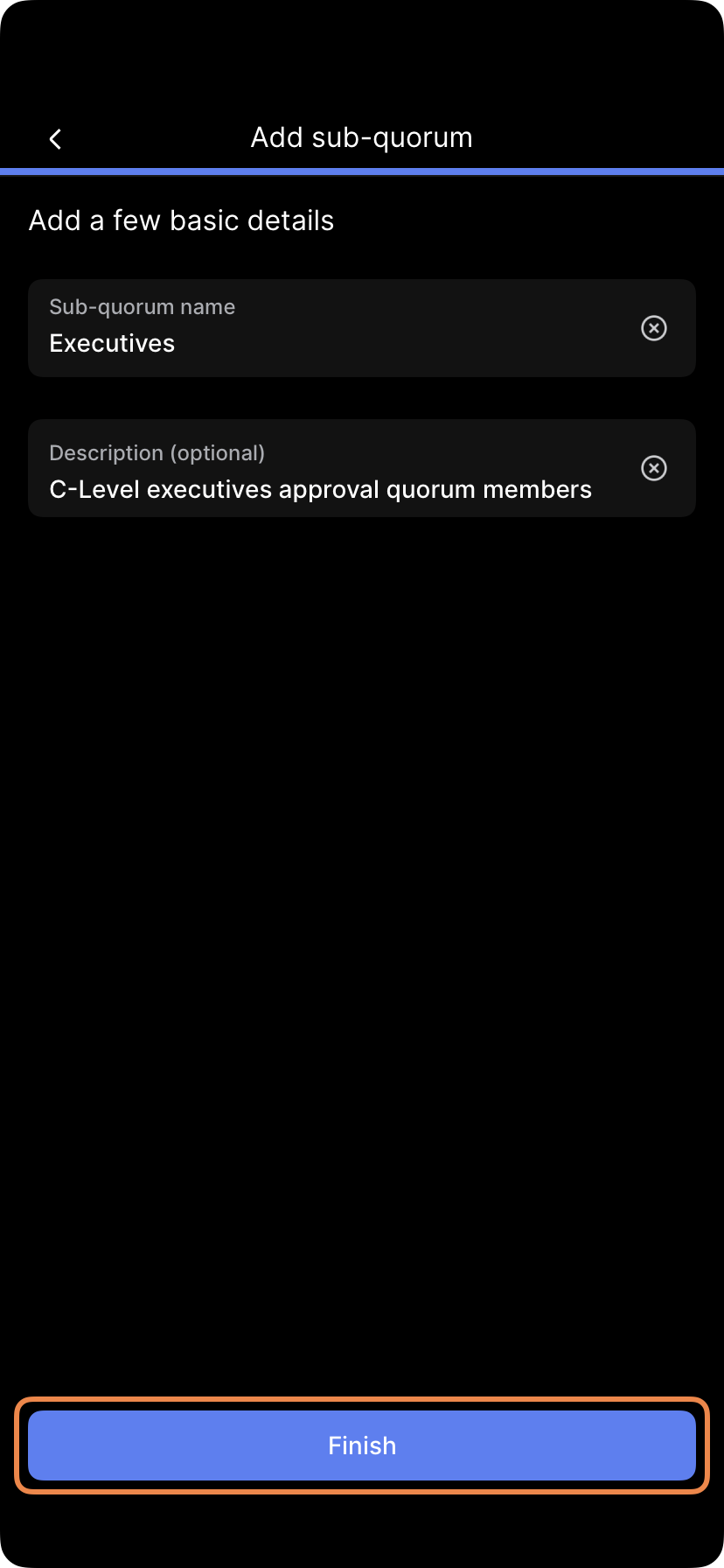
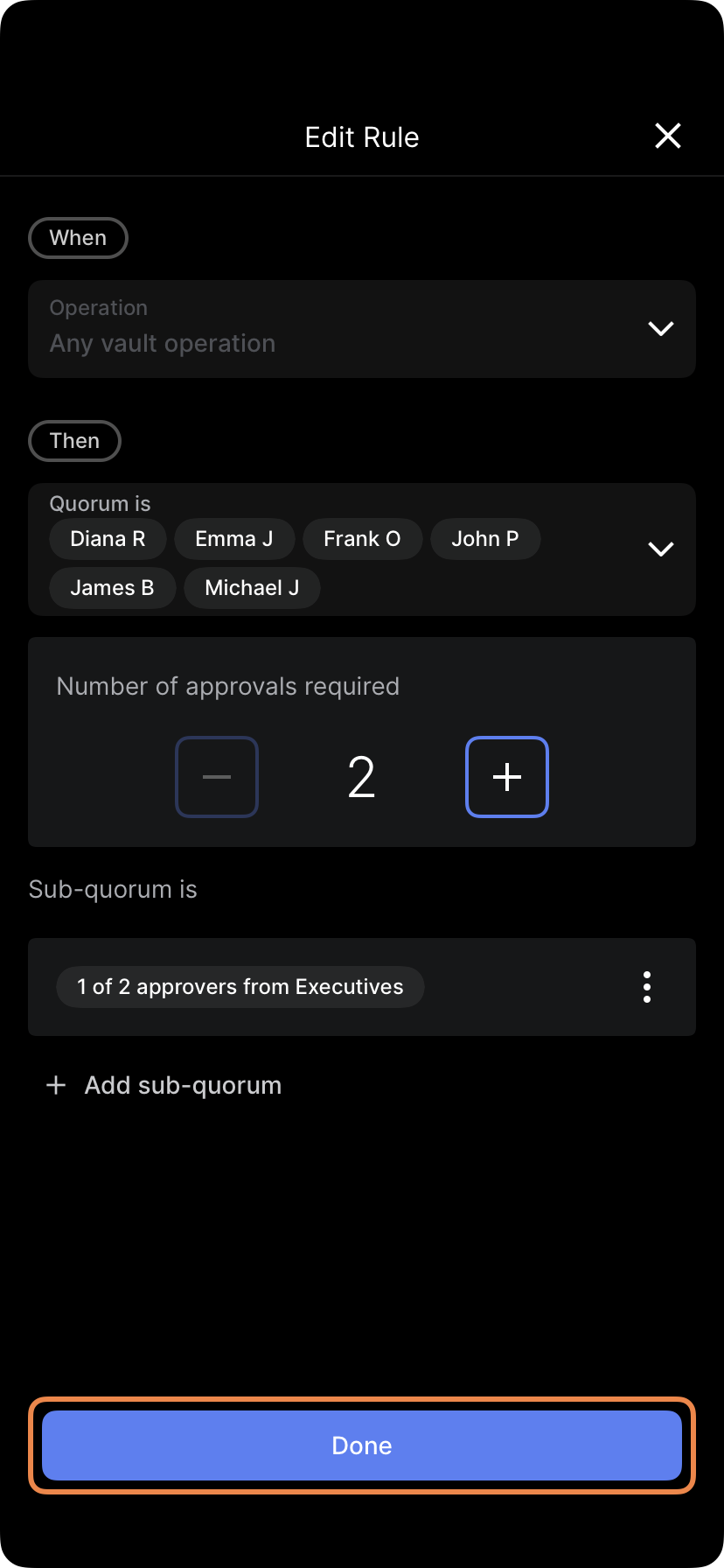
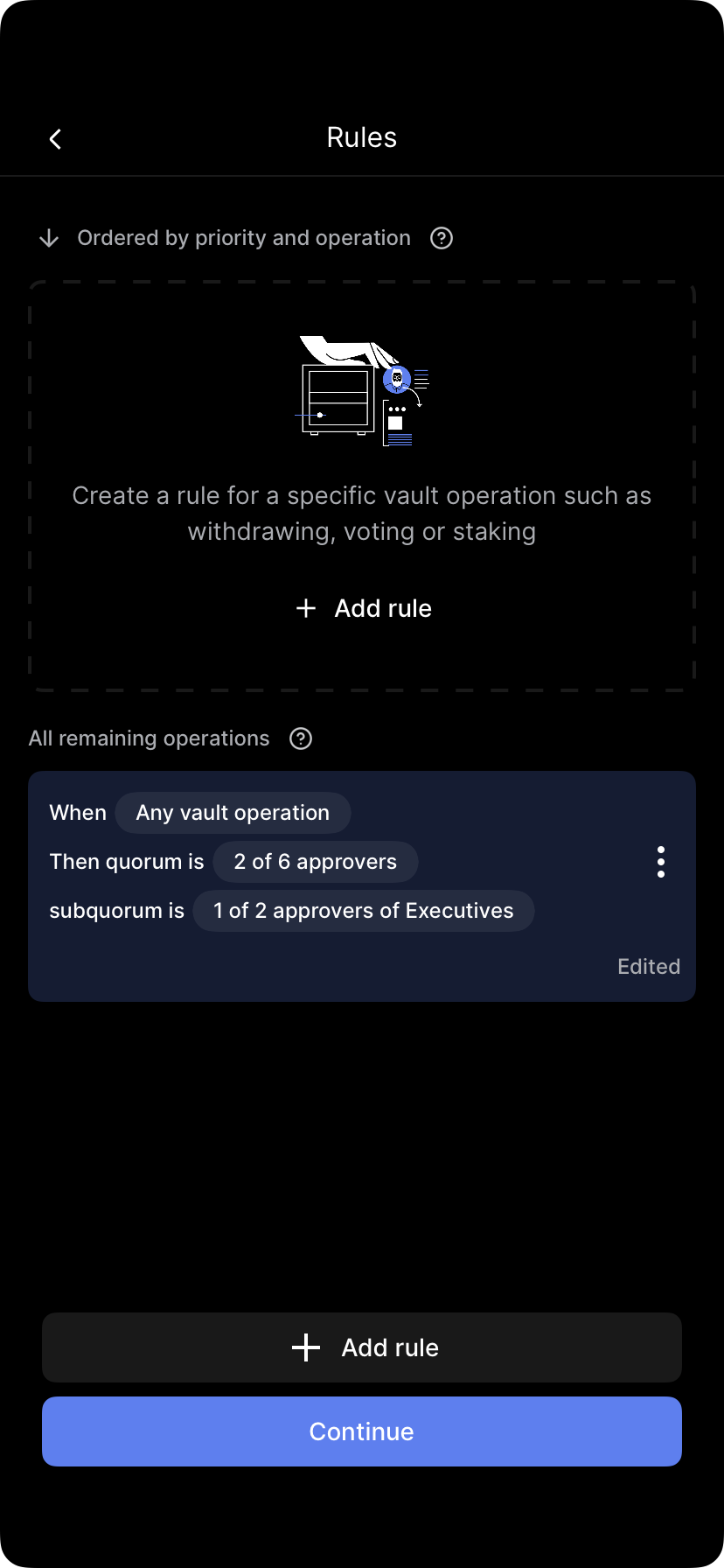
Enter a name and description (optional) for the sub-quorum. Review the details, adding more sub-quorums if needed. Tap Continue, then Save changes. Follow the prompts to submit biometric approval (quorum required).
Updated 4 months ago