
Adding a new user
Invite a new user
Begin by tapping the gear icon, tap Team, and then Add new user. In the next screen, you’ll be able to select permission levels for the user.
Note: Only administrators are able to add new users to an organization and generate invites.

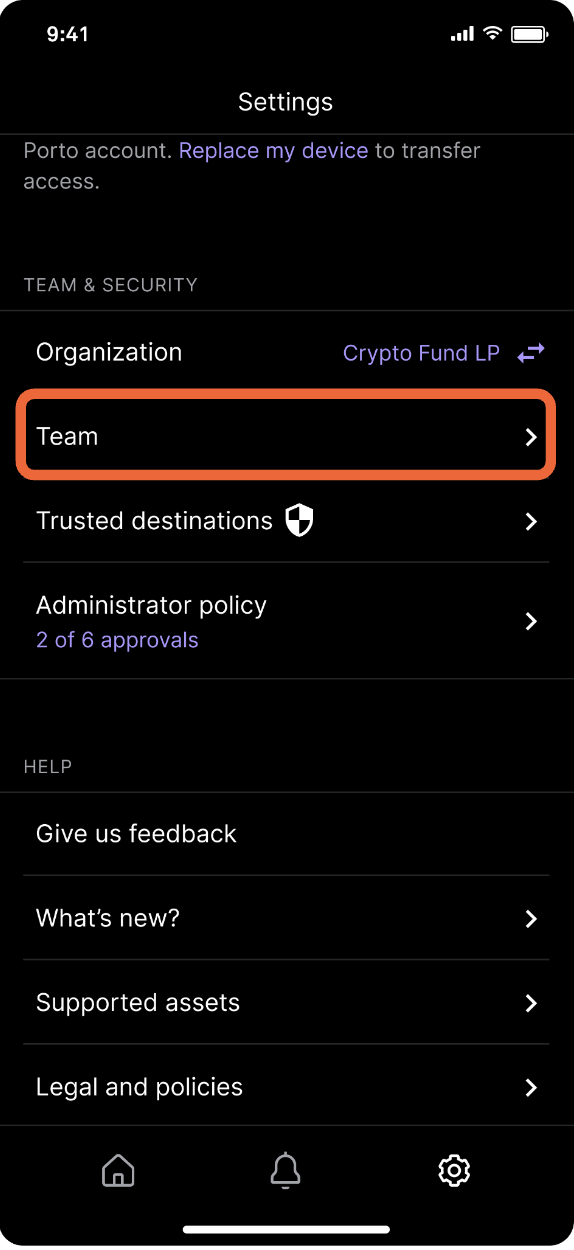
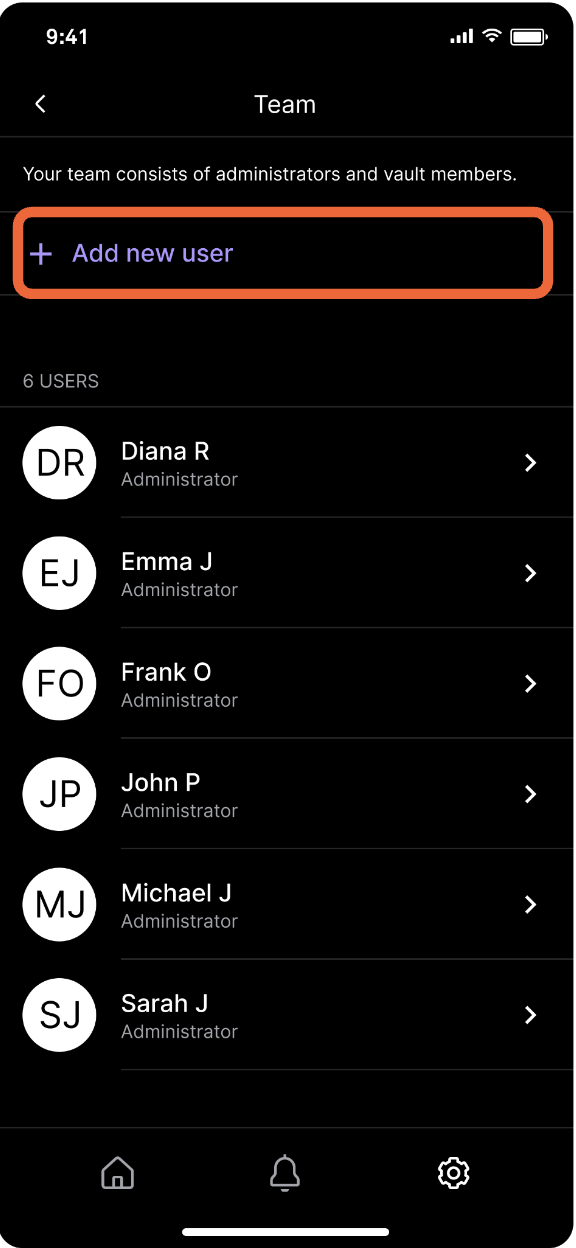
Tap the Settings icon, tap Team, then tap Add new user.
Define the new user’s role and vault access.
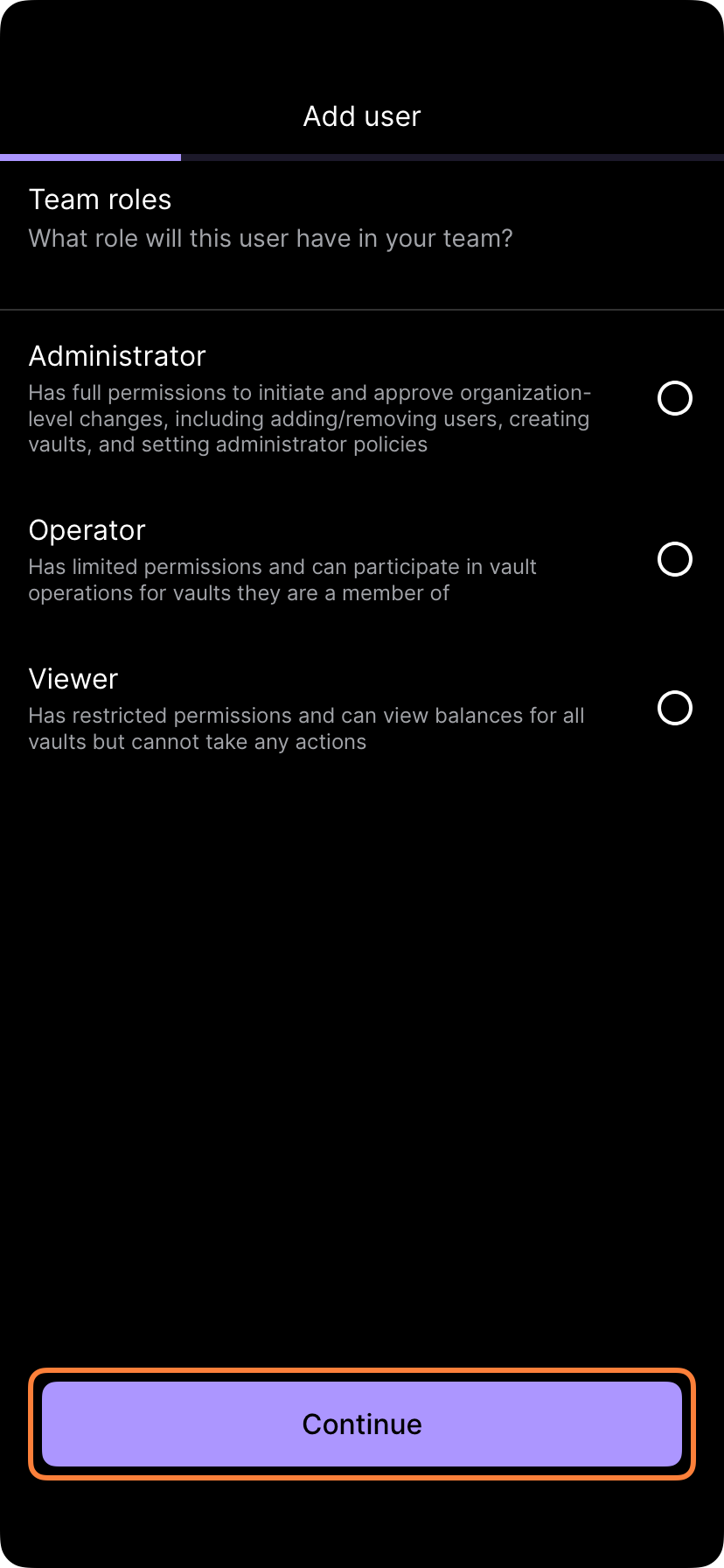
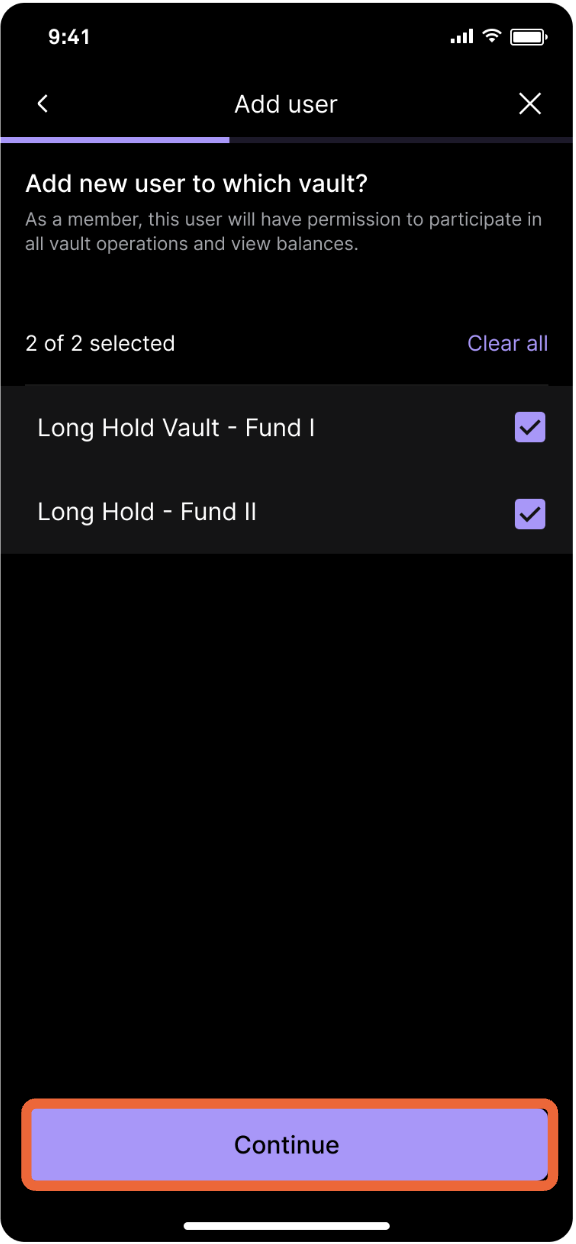

Select the permission levels before tapping Continue, select the vaults and tap Continue. Select the vault policies the user will be a required approver of.
Provide the email address of the user you would like to invite.
Next steps for a new user
The new user will receive an invite via email with instructions for how to join the organization. The new user will first need to download the Porto iOS app from the App Store. The email will be sent from [email protected].

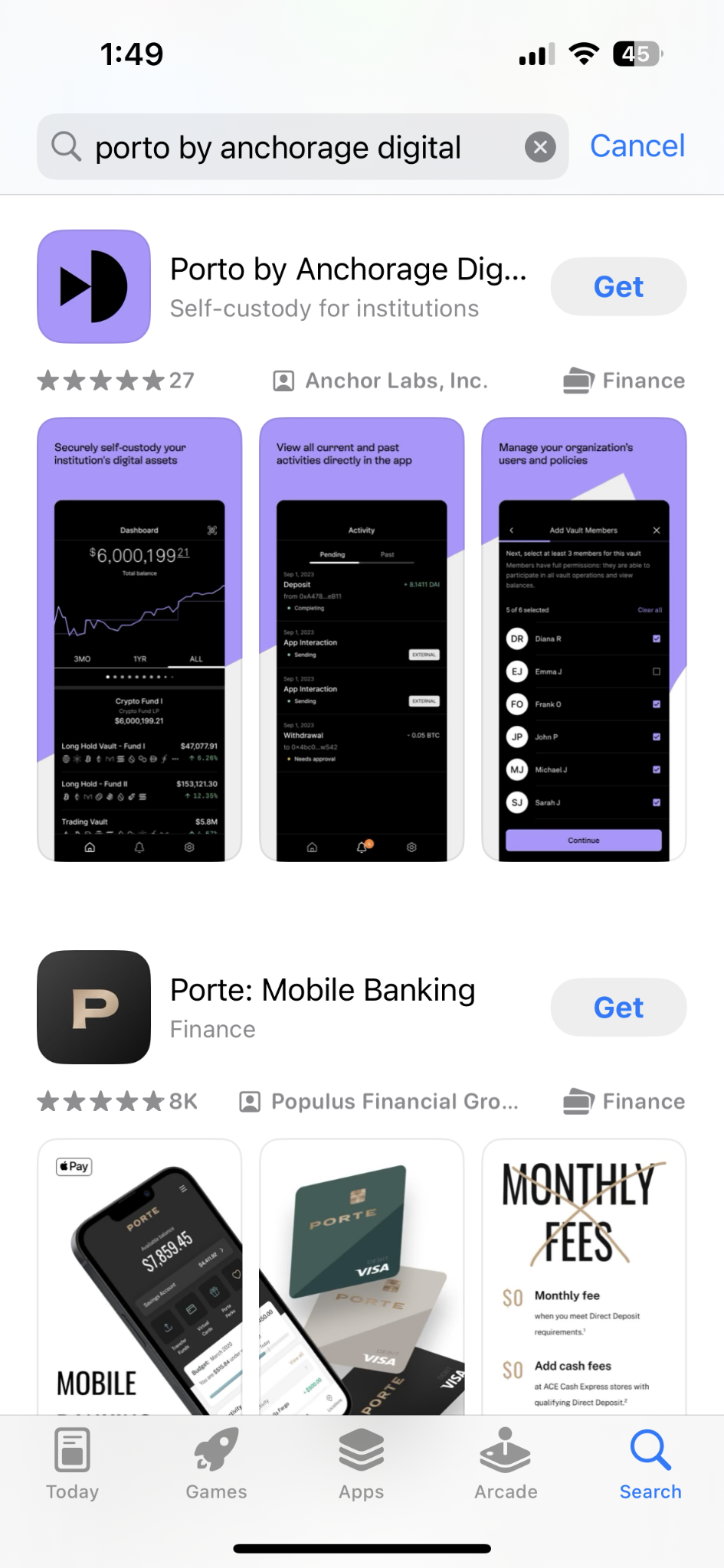
In the email, tap Download the Porto iOS app to download the mobile app.
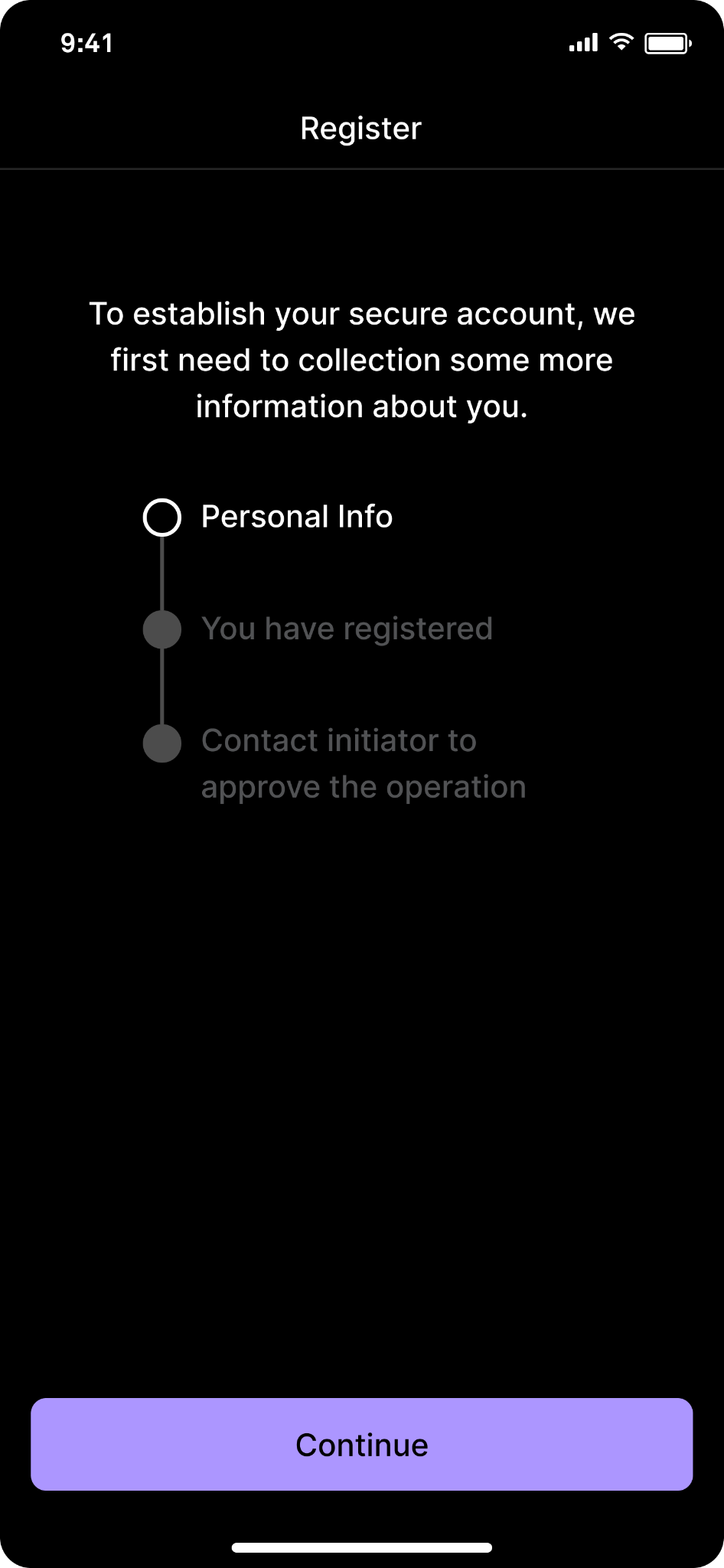
Initiator and quorum approvals
The administrator who initiated the request will get an alert notifying them that they need to approve the operation.
The quorum administrators will then receive a notification to approve the Add user operation.


Tap Add user and complete biometric authentication.
Updated about 1 year ago