
Browser extension
Download the extension
The Anchorage Digital browser extension connects your Porto wallets directly to decentralized apps (dApps).
Download the Anchorage Digital Browser Extension for Chrome
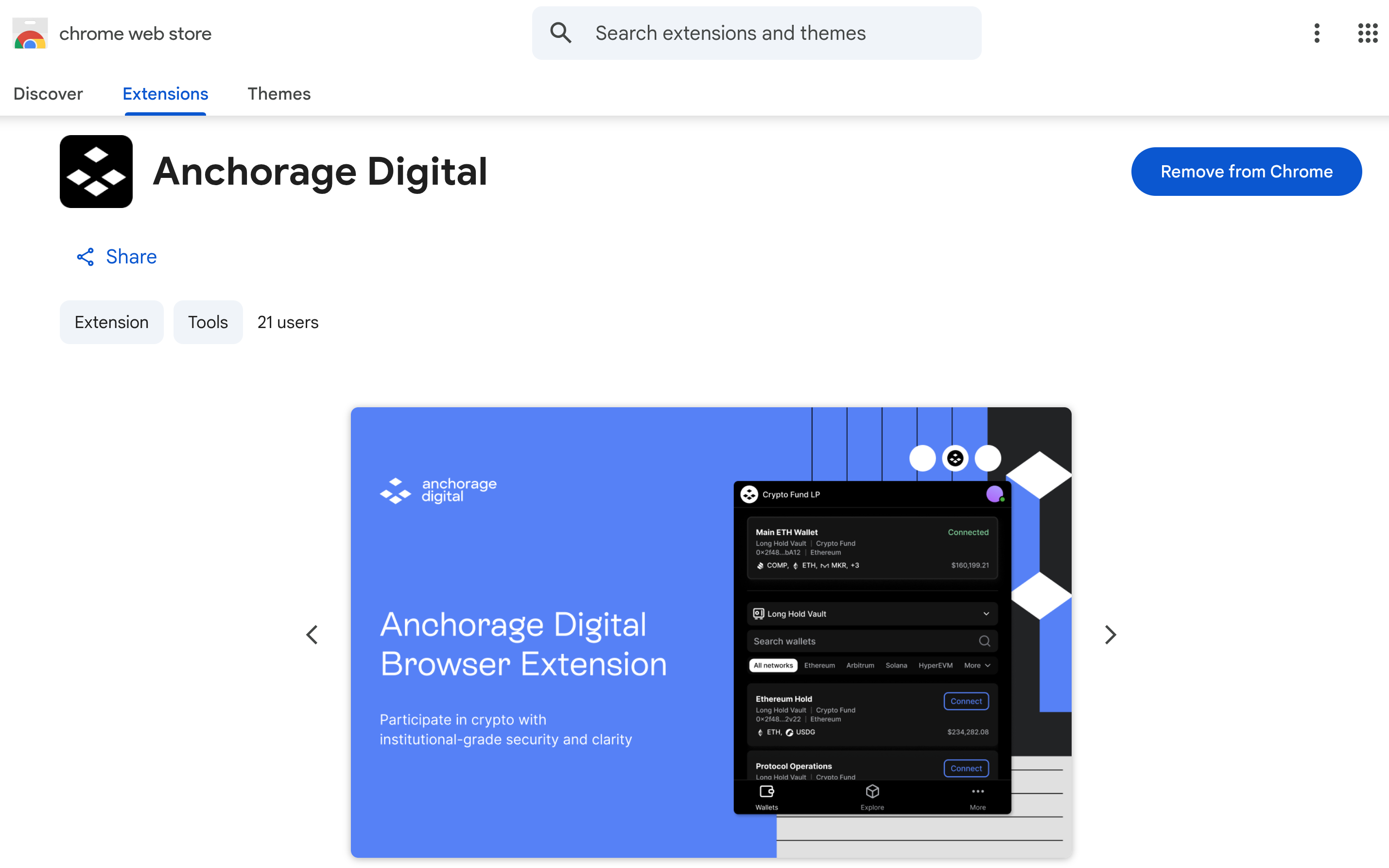
Log in to your organization
Log in using the same credentials as your web dashboard.
- Open the browser extension.
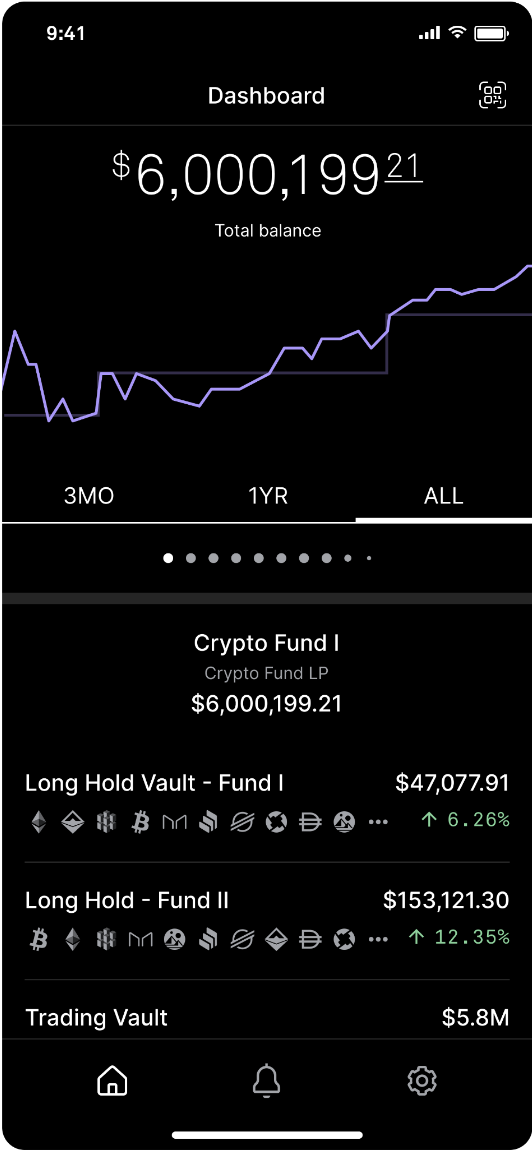
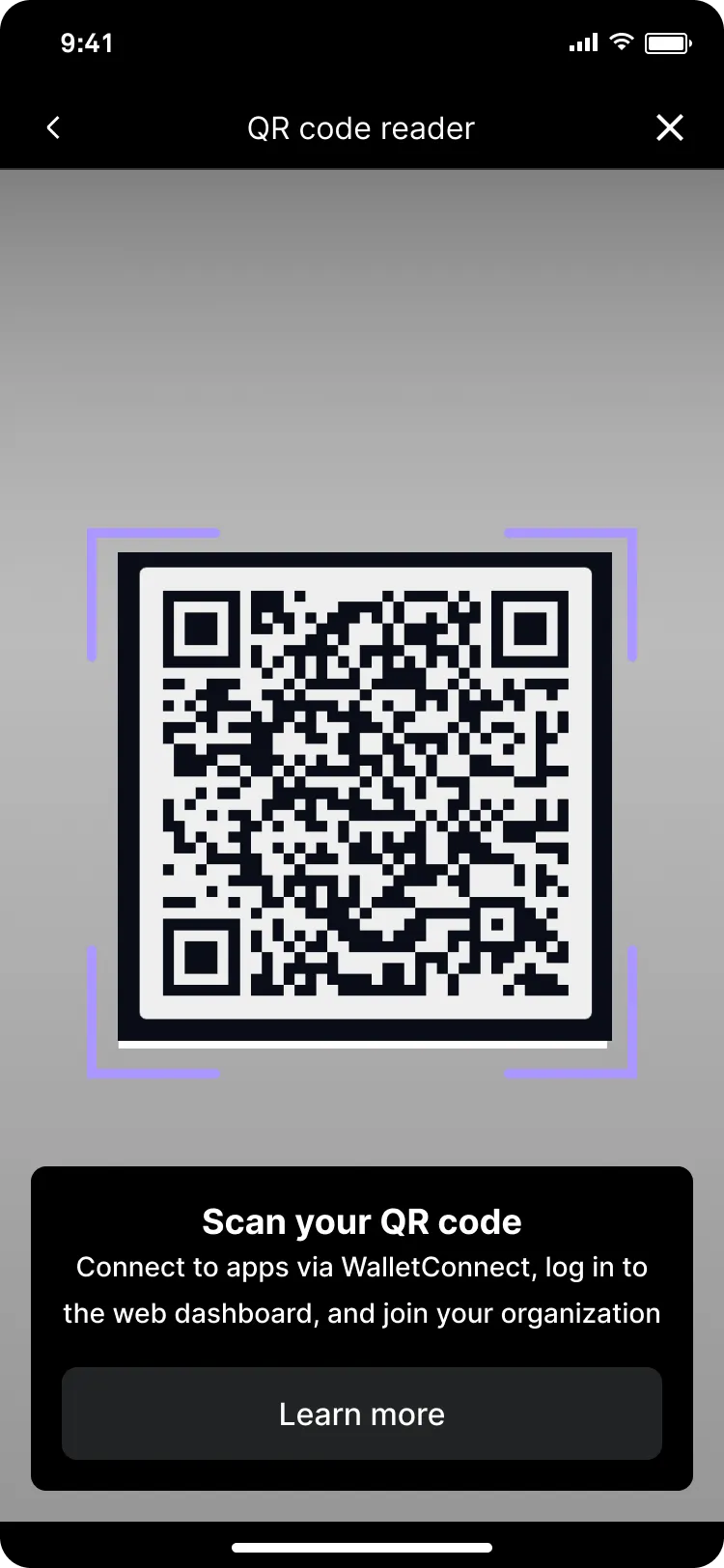
- Open your Anchorage Digital iOS app and select QR Code.
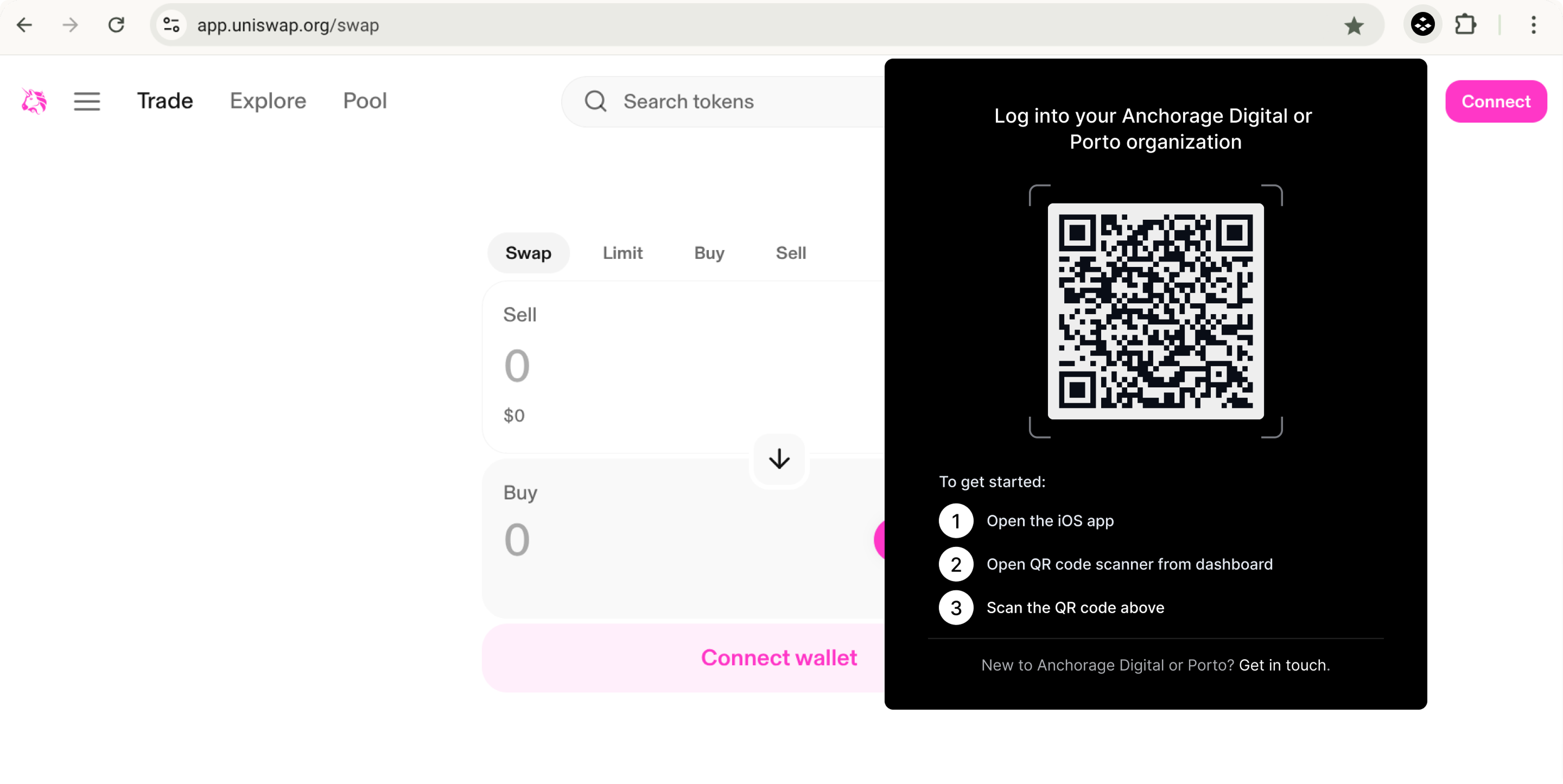
- Scan the QR code shown in the browser extension.
- Review the location on you device to allow access.
Connect wallets to external apps
Enabled networks
We are adding new chains to the browser extension regularly. You can view all enabled chains in the Networks filter within the Wallets tab.
Connect a wallet
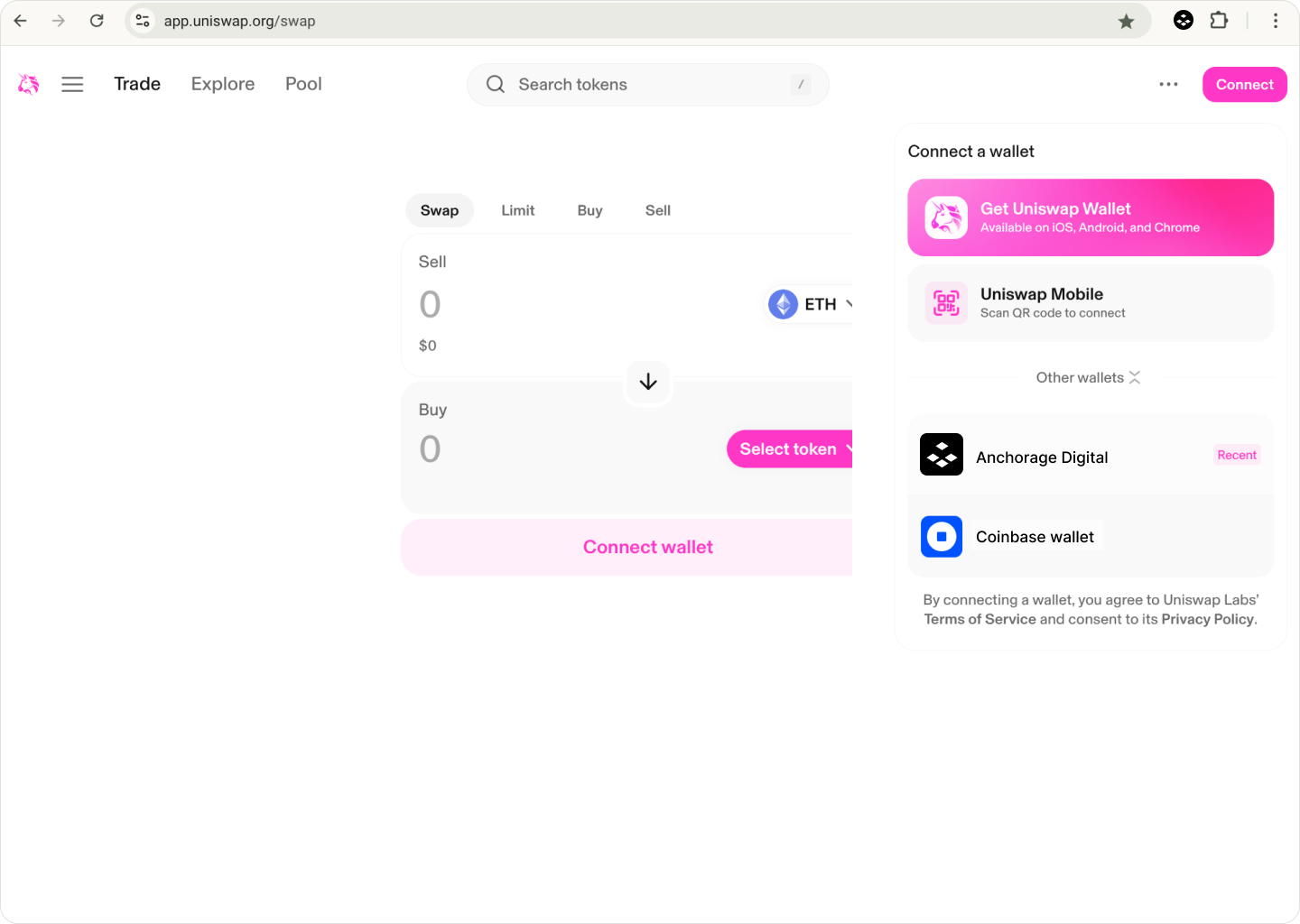
- Open an external app (dApp).
- Select Connect in the top right corner of the app.
- Select Anchorage Digitall from the list of options. Note: If you don’t see Anchorage Digital, contact [email protected].
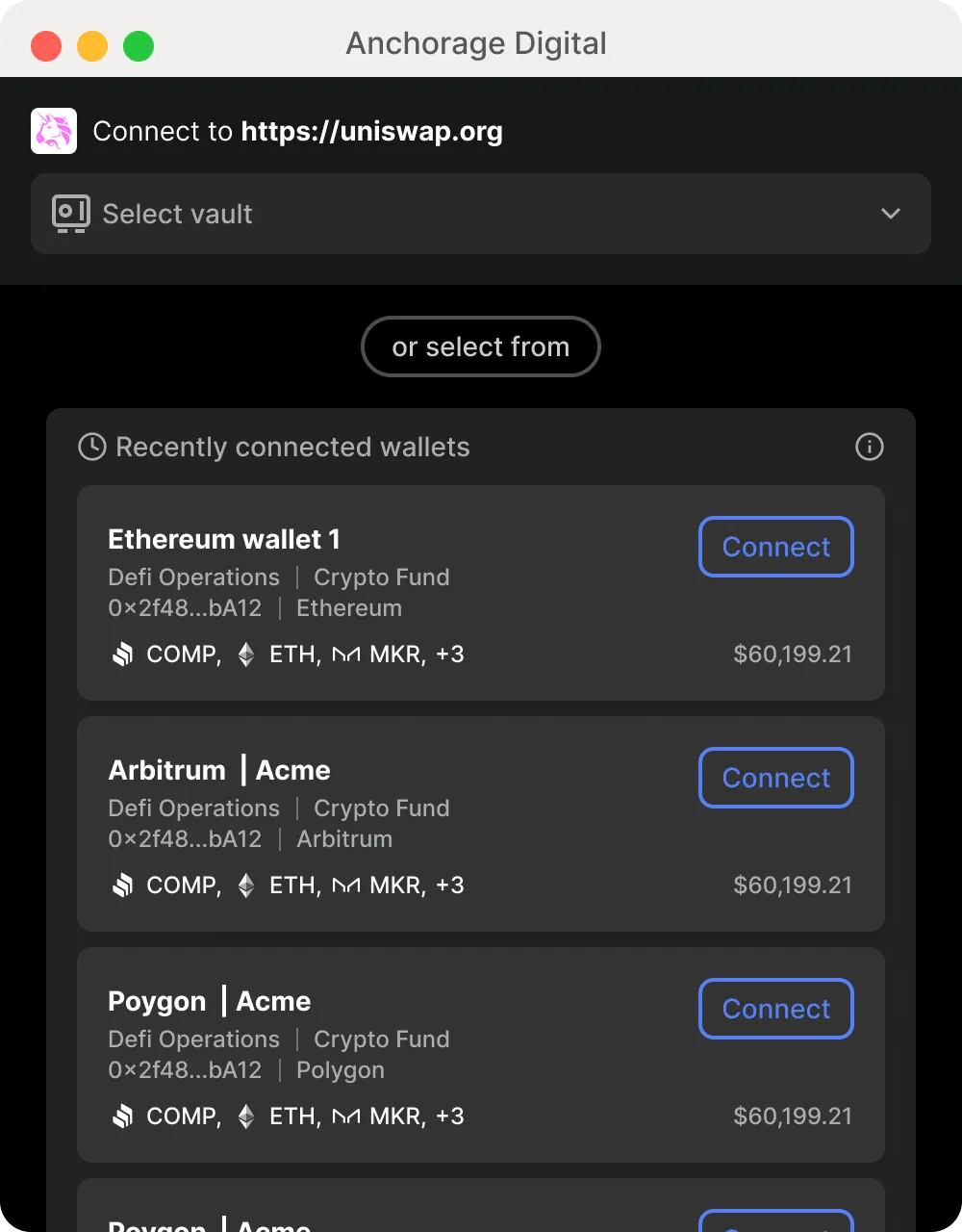
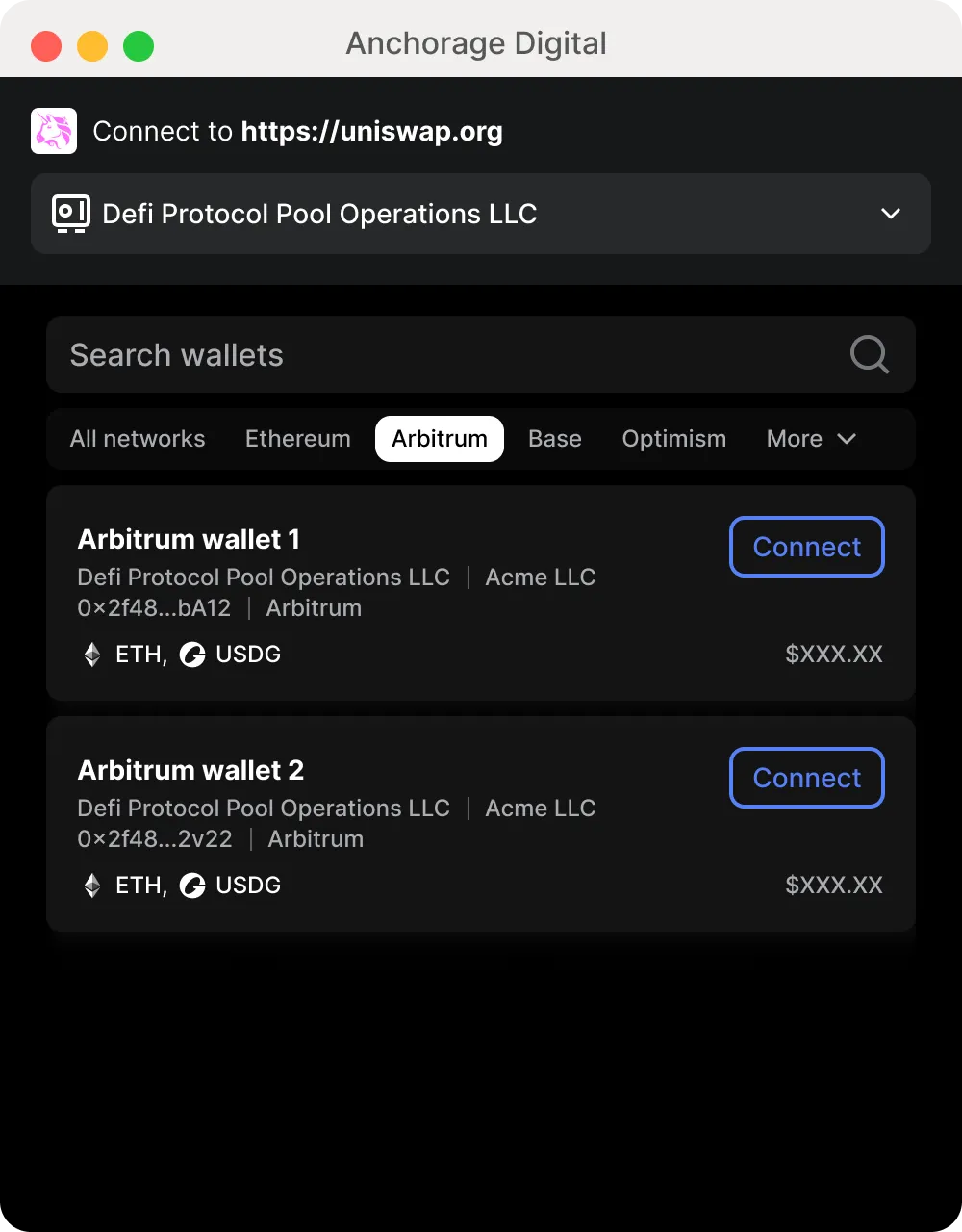
- Filter by vault or select a recently used wallet to find the account you want to connect.
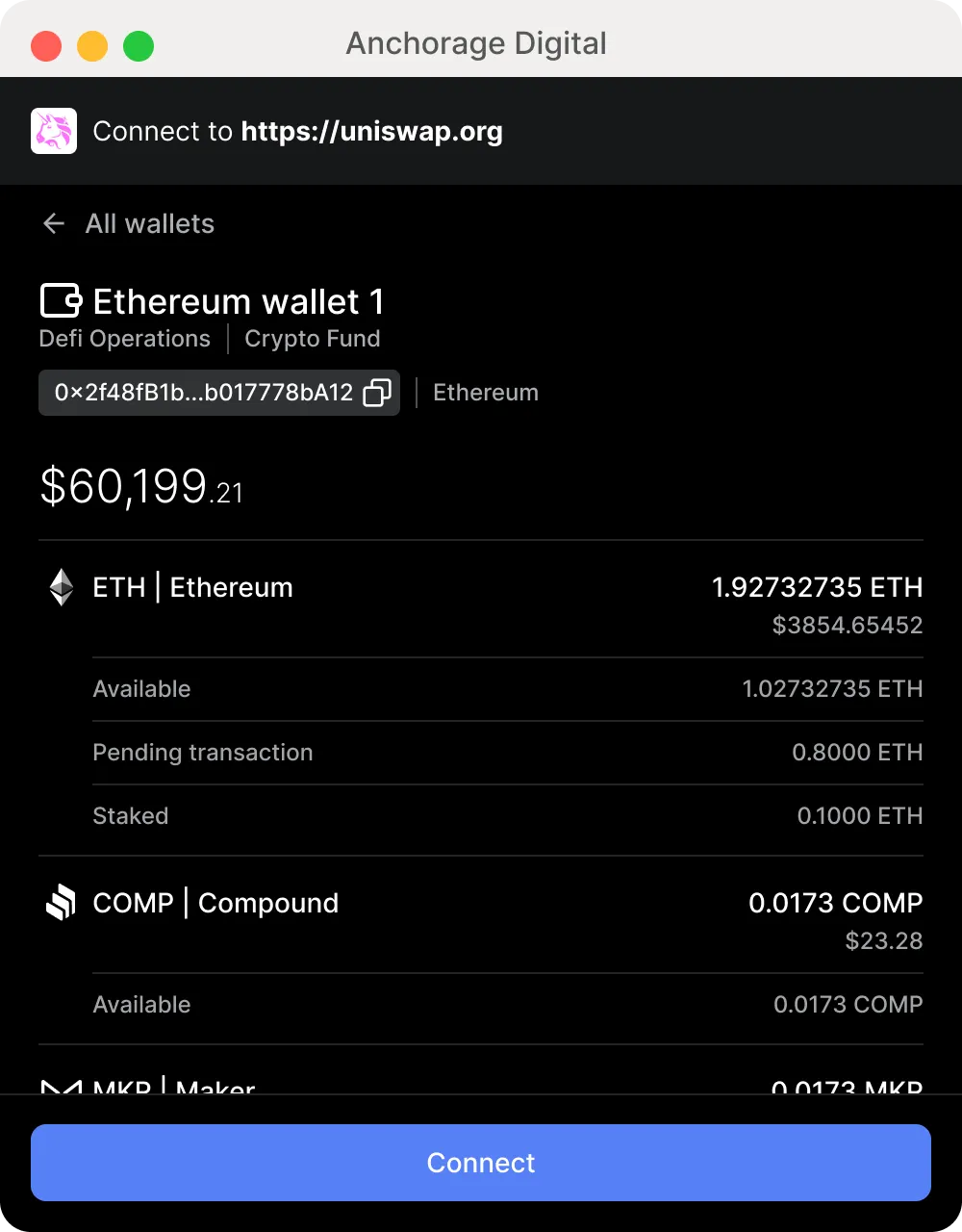
- Select the wallet to view details and balance information.
- Select Connect to finish.
Switch wallets
You can switch the connected wallet after you have established a connection.
- Open the browser extension.
- Navigate to the Wallets tab to see your currently connected wallet.
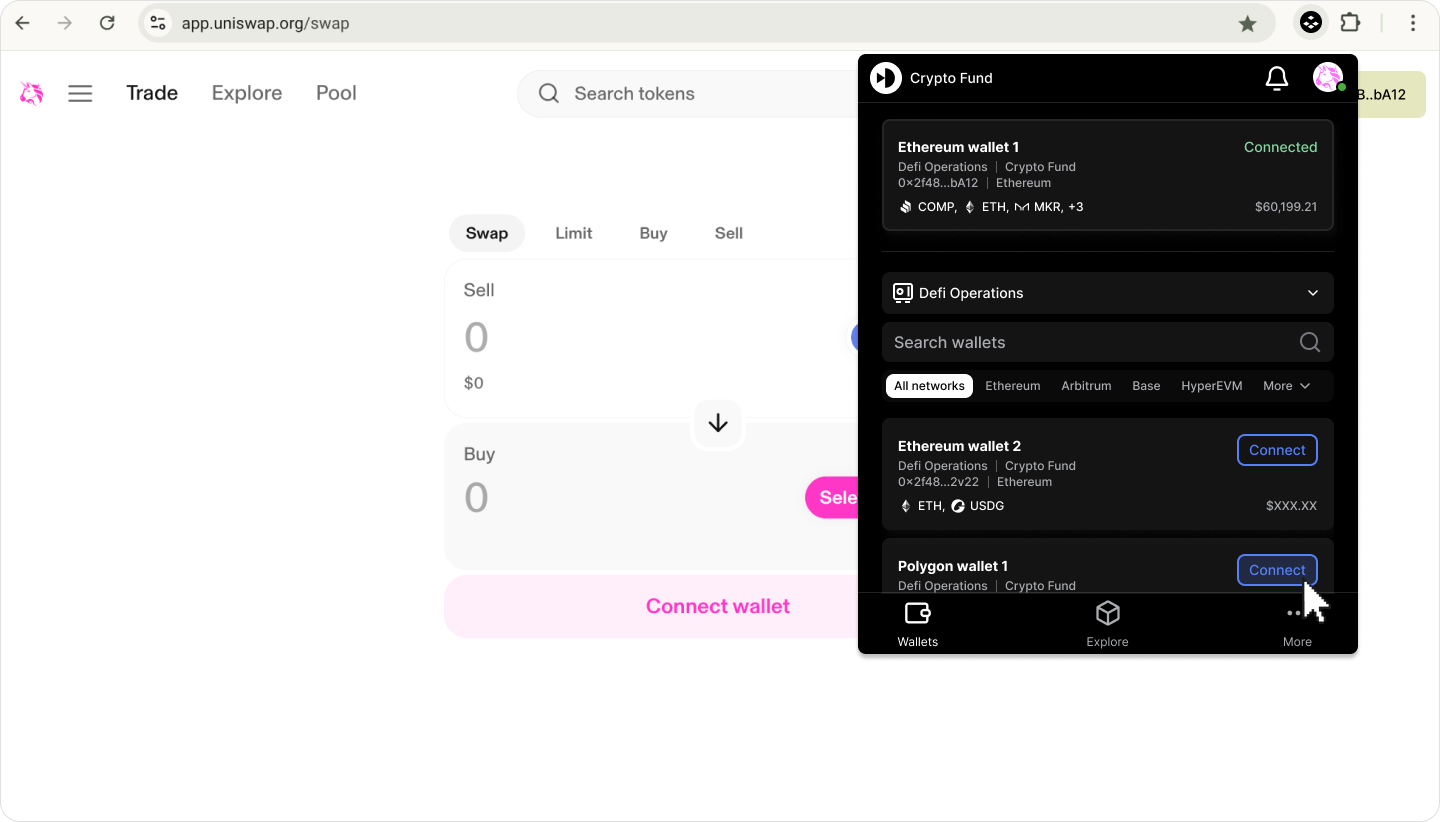
- Search for a different wallet by vault, network, or name.
- Select Connect on the wallet card to switch the connection.
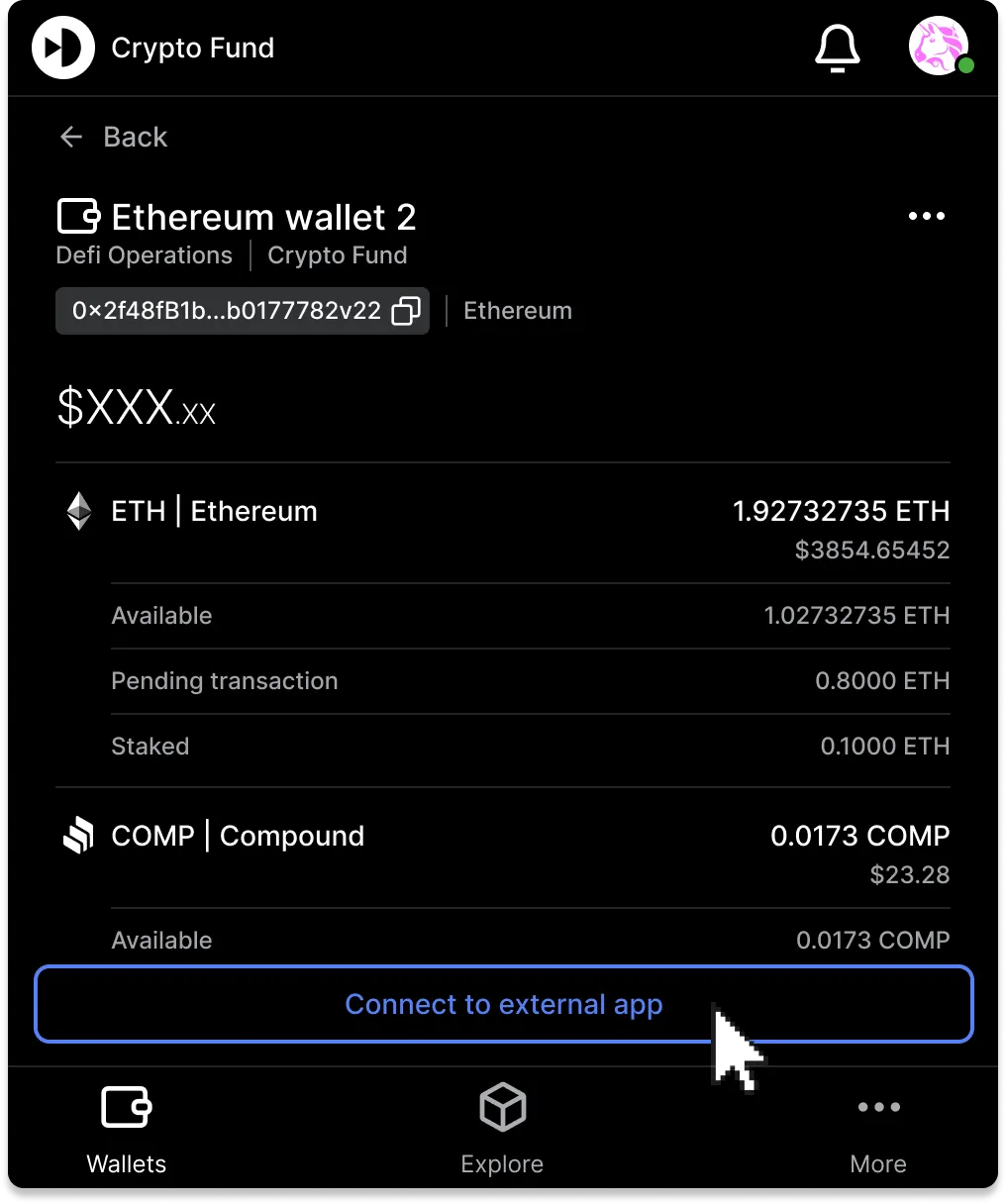
Alternatively, you can switch wallets from the Wallet details page by selecting Connect to external app.
Disconnect a wallet
You can disconnect your wallet in three ways:
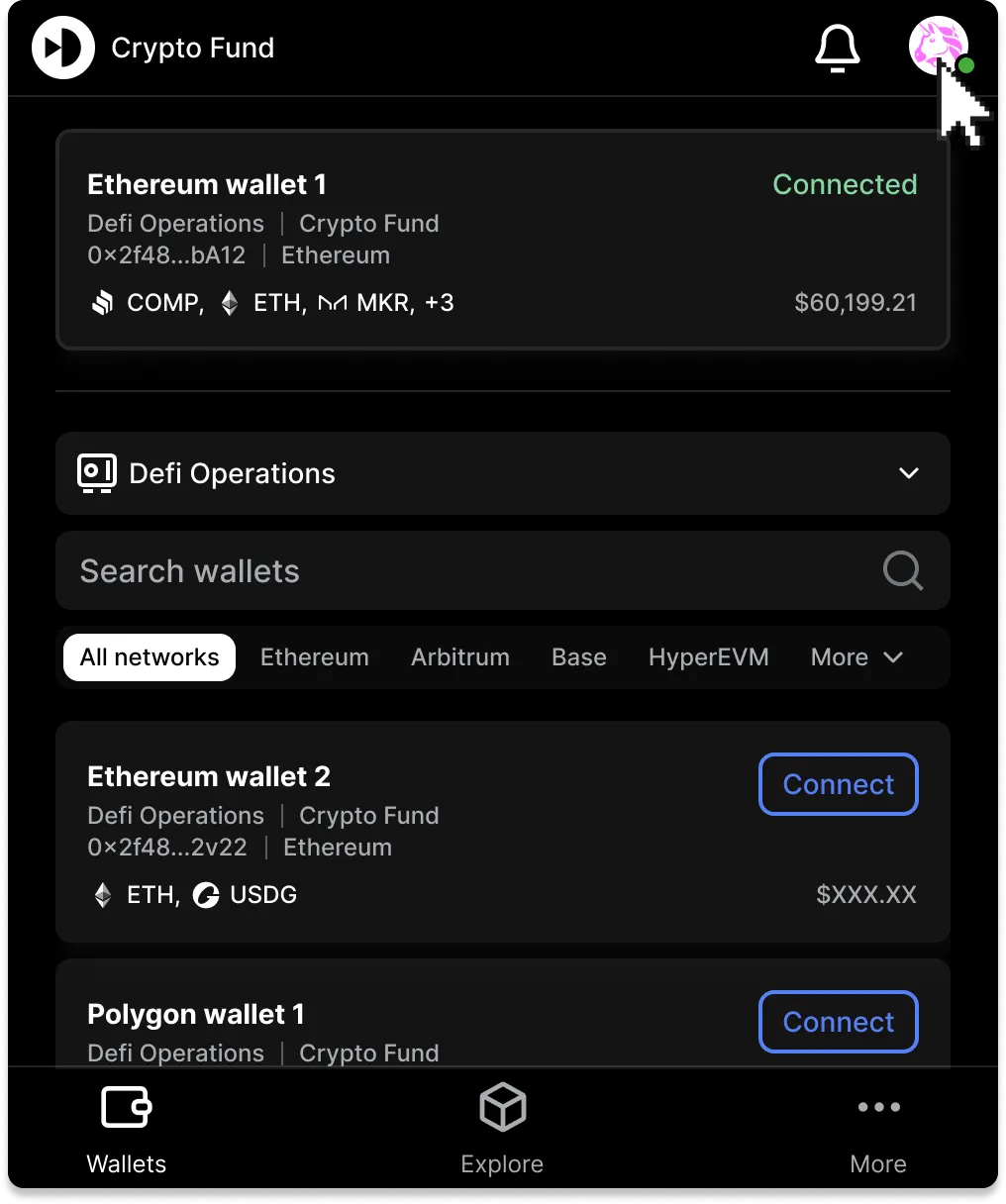
From the dApp icon: Open the browser extension, select the dApp icon in the top right, and select Disconnect wallet.
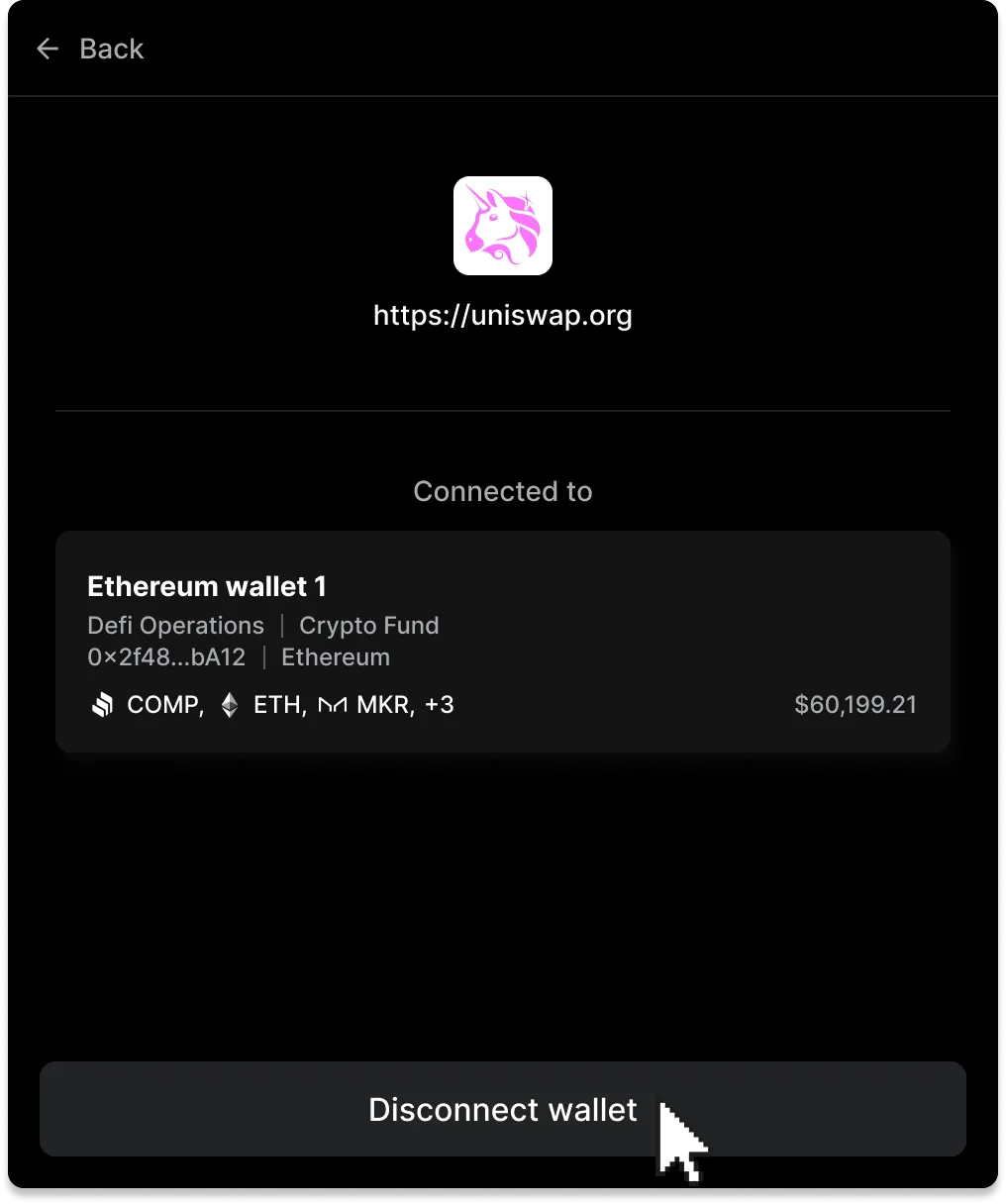
From Wallet details: Select the connected wallet, select More (three dots) in the top right, and select Disconnect wallet.
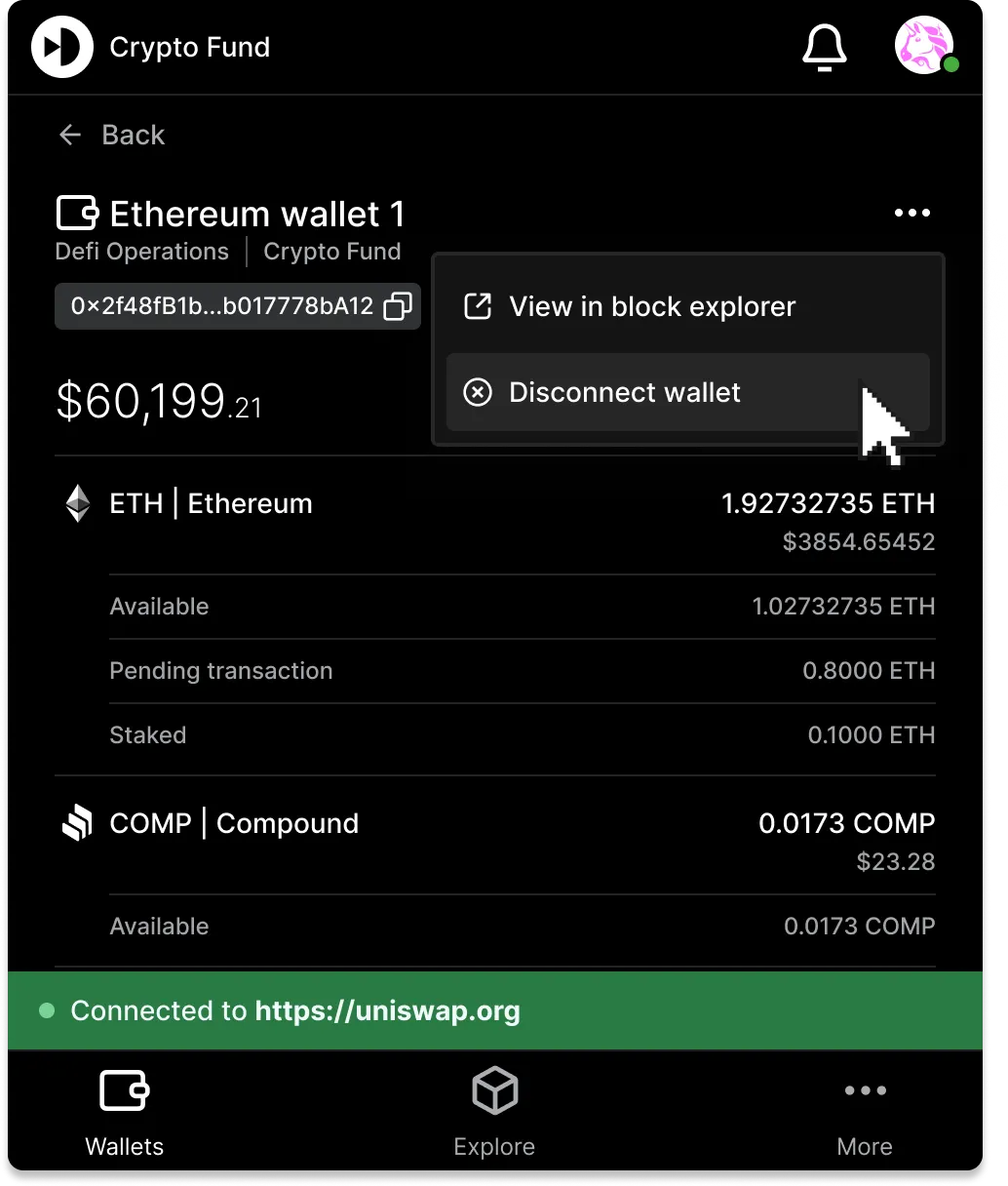
From the external app: Select the connected wallet in the external app interface and select Disconnect wallet.
Explore external apps
Recently used dApps
To open a recently used app, go to the Explore tab in the browser extension. The top section displays your five most recently used apps. Select an app card to open it in a new tab.
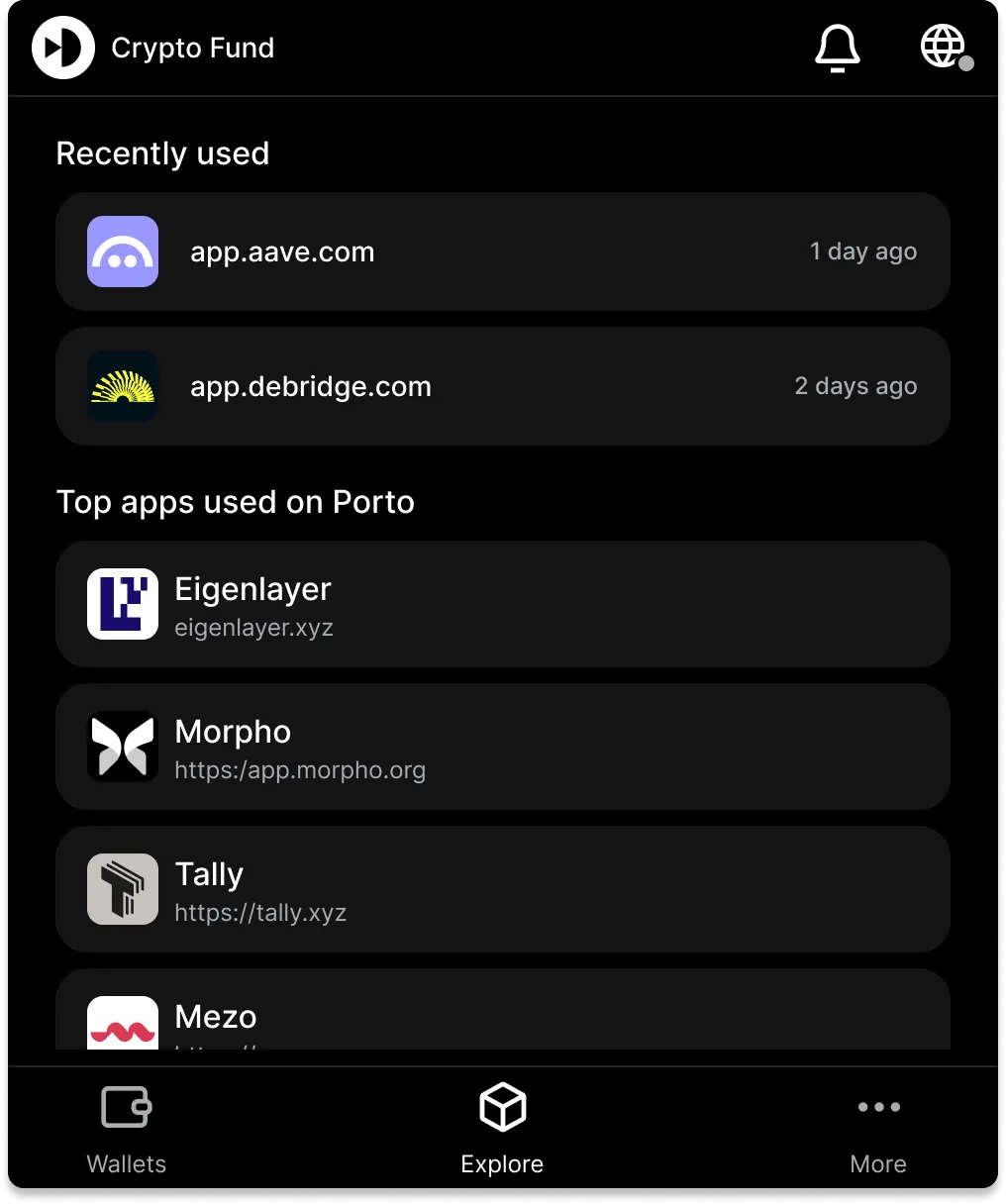
Top apps
Go to the Explore tab to view Top Apps used on Porto.
Updated 9 months ago